Payment terms
-> Feature coming soon
Add a payment term
Note: it is impossible to create a payment term directly in ALIX if the Zoho Books integration is enabled. In that case, payment terms are managed in Zoho Books, then synced to ALIX. For more information, see the Zoho Books integration page.
- In Settings, go to the Accounting section, then Payment terms.

- Click Create a payment term in the top right.
- Enter the requested information, with these clarifications:
- Name: name of the term as it will appear in lists and on invoices.
- Days: number of days used to calculate the due date.
- Default: activate this toggle so that this term is applied automatically to new contacts and new vendor bills. See the Set the default term section below.
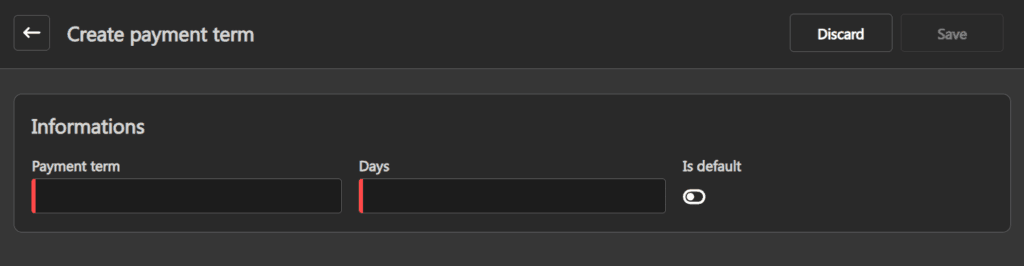
- Click Save in the top right when you have finished.
Edit a payment term
Note: it is impossible to edit a payment term directly in ALIX if the Zoho Books integration is enabled. For more information, see the Zoho Books integration page.
- In Settings, go to the Accounting section, then Payment terms.
- Click the term to edit.
- Edit the desired fields.

- Click Save in the top right when you have finished.
Delete a payment term
Note: it is impossible to delete a payment term used by a contact, a customer invoice or a vendor bill. The term must first be removed from all entities that reference it. It is also impossible to delete the payment term marked Default. For more information, see the Set the default term section below.
- In Settings, go to the Accounting section, then Payment terms.
- Click the term to delete.
- In the top right, click More actions -> Delete.

Set the default term
Only one payment term at a time is marked Default. This term is applied automatically to every new contact and every new vendor bill, and can be changed manually on a case-by-case basis.
To change the default term:
- In Settings, go to the Accounting section, then Payment terms.
- Click the desired term.
- In the top right, click Edit, then activate the Default toggle.

- Click Save in the top right when you have finished.
The previous default term is automatically demoted. The change is recorded in the history of both terms.
Sync from Zoho Books
When the Zoho Books integration is enabled, the payment terms defined in Zoho Books are imported into ALIX. This action can be triggered manually at any time.
- In Settings, go to the Accounting section, then Payment terms
- Click More actions in the top right, then select Sync from Zoho Books.

- Wait a few seconds for the synchronization to complete.
Note: existing terms in ALIX that match a Zoho term (by identifier or by number of days) are updated. New Zoho terms are added.
For more information on the bidirectional behavior with invoices, see the Zoho Books integration page.