Produce inventory in a card
The Inventory production popup allows you to declare produced quantities when moving a card. It also opens in unit mode from a card’s full card.
Open the production popup
Two methods allow you to open the Inventory production popup:
| Multiple production | Move a card to the next step in the operations board. The popup opens with one line per planned consumption. |
| Unit production | Click on a card to open its full card, go to the Inventory production tab, then click the Unit production button on the desired consumption line. The popup opens with a single line. |
Declare a production
- Open the Inventory production popup using one of the two methods above.
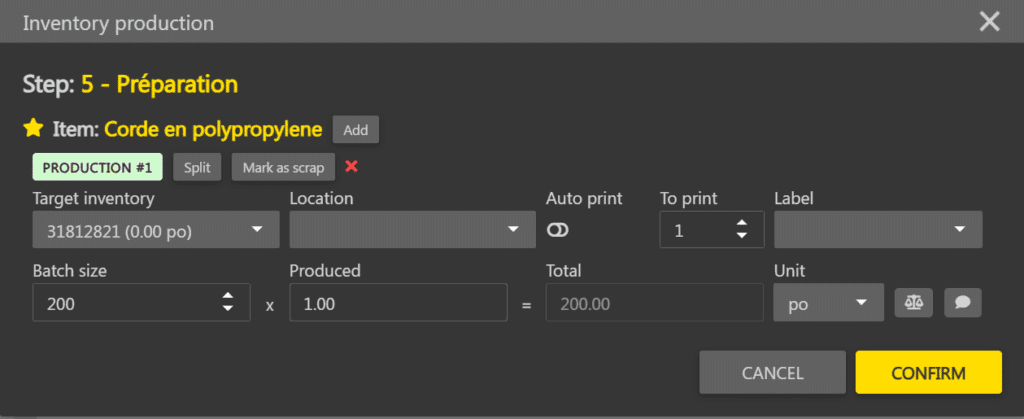
- Enter the produced measure in the Produced field on the line.
- If necessary, select an existing inventory in the Target inventory selector. By default, Create an inventory is selected.
- Click Confirm at the bottom right when you are done.
Manage production lines
In multiple production, it is possible to add or split lines to declare multiple inventories from the same consumption.
| Add | Click Add to create a new empty line for the same consumption. The measure can be distributed between lines. |
| Split | Click Split on a line to split it in two. The measure from the original line is distributed between the two resulting lines. |
Note: the total number of lines is limited to 10.
To declare scrap on a line, see the Manage production scrap page.