Schedule releases
It is possible to schedule daily, weekly or monthly item releases.
- From the menu on the left, choose Sales->Sales orders.

- Click the sales order that you want. The information for this order will appear on the screen.
Schedule releases
- In the ordered items section of the sales order, select the items that you want.

- Click More actions at the top of the list, and then click Schedule releases.
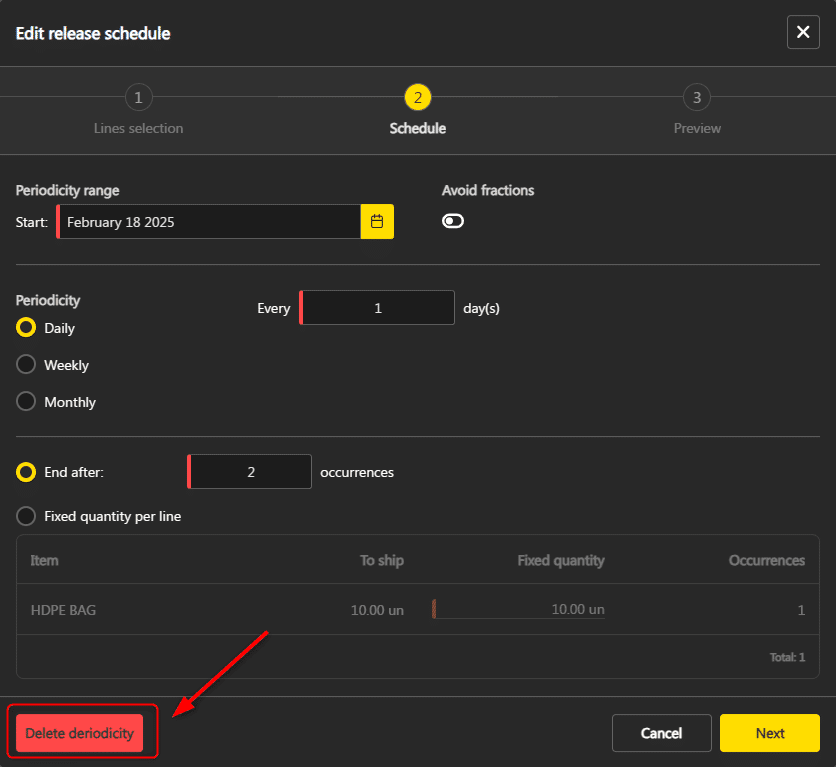
- Plan the release schedule using the different options, so here are some details:
- Avoid fractions : activate it if the item to be shipped cannot be split.
- End after : choose the number of shipments desired, ALIX will divide the quantity of items per shipment.
- Fixed quantity per line : choose the desired quantity per shipment, ALIX will determine the number of shipments required.

- Click Next.
- Verify and adjust the shipment information that will be created. Note: at this stage, shipments are not yet created, this is the preview before creation:
- It is possible to modify the planned dates and add a reference number.
- It is possible to delete one or more items from a planned shipment. To do this, select the item to be deleted, then click Delete.

- Click Create.
- Once the releases are scheduled, a small calendar icon appears next to the word Shipped.

Edit scheduled releases
It is not possible to modify a shipment that has already been shipped. If one or more scheduled shipments are already scheduled, they will not be taken into account in the changes. In addition, the following procedure deletes the existing schedule, to create a new one with the updated information.
- In the ordered items section of the sales order, click the calendar icon next to the word Shipped.
- The Releases Schedule screen appears. See the previous section for details on the information to enter..
Delete scheduled releases
It is not possible to delete a shipment that has already been shipped. If one or more scheduled shipments are already shipped, they will not be taken into account in the deletion.
- In the ordered items section of the sales order, click the calendar icon next to the word Shipped.
- Click Delete periodicity.