Item groups
An item group allows you to define certain information once and automatically apply it to the items attached to it. Attaching an item to a group is optional: an item without a group retains all of its editable fields directly in the article record.
Fields defined by the group
The fields below are defined by the group and cannot be modified in the file of a linked item. To modify them, you must go through the group: the change will apply to all items linked to it.
| Type | Nature of the item (good, service, or custom service). Visible in the General tab. |
| Inventory management type | How stock is managed. Visible in the General tab. |
| Sold | Toggle indicating whether the item is sold. Visible in the General tab. |
| Manufactured | Toggle indicating whether the item is manufactured. Visible in the General tab. |
| Purchased | Toggle indicating whether the item is purchased. Visible in the General tab. |
| Asset account | Asset account associated with the item. Visible in the Accounting tab. |
| Income account | Income account associated with the item. Visible in the Accounting tab. |
| Expense account | Expense account associated with the item. Visible in the Accounting tab. |
Create or edit an item group
Note: it is not possible to modify the Type or Inventory management type of a group if items are linked to it.
- In Settings, go to the Items section, then Item groups.
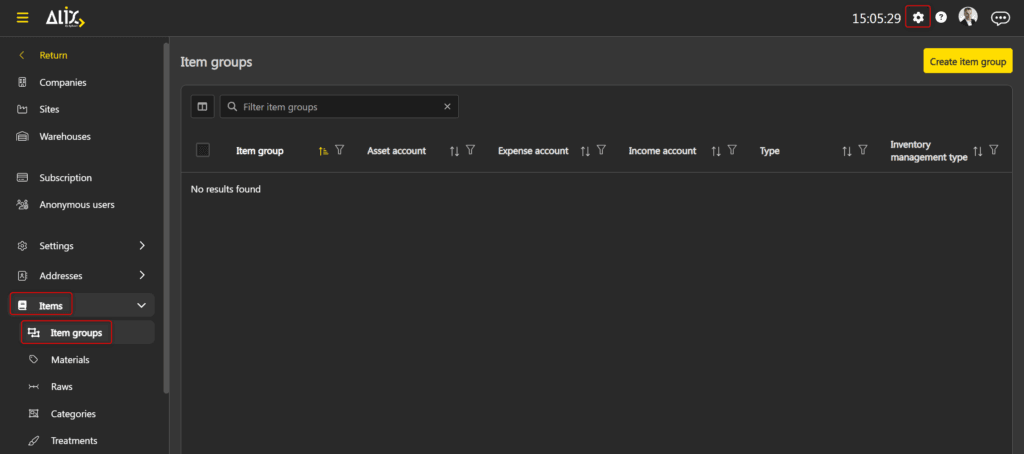
- Click Create item group in the top right, or click the desired group in the list to edit it.
- Enter or modify the requested information. See the Fields defined by the group section for details on each field.
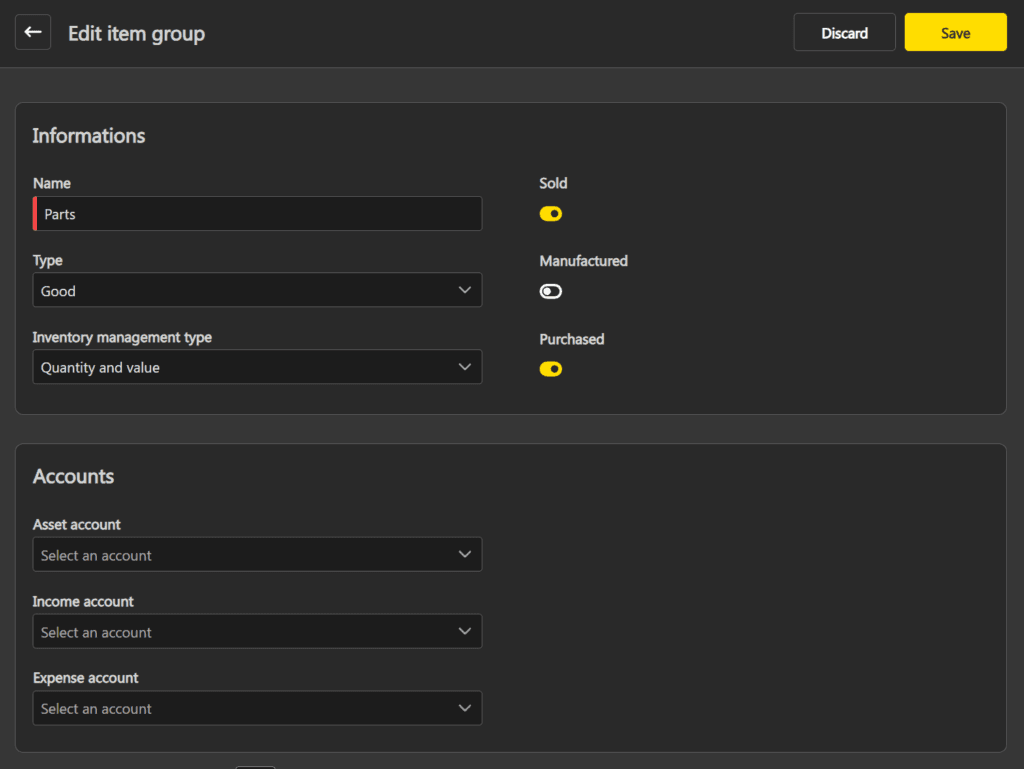
- Click Save in the top right when you are done.
Link or unlink an item from a group
Linking an item to a group is done directly in the item file. It can be modified or removed at any time.
- In the menu on the left, choose Items.
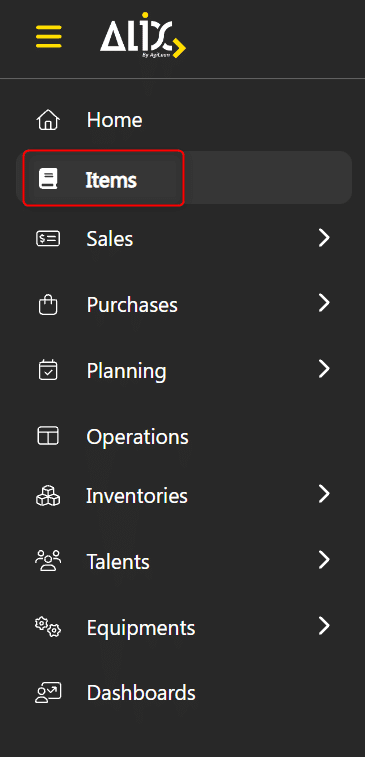
- Select the desired item.
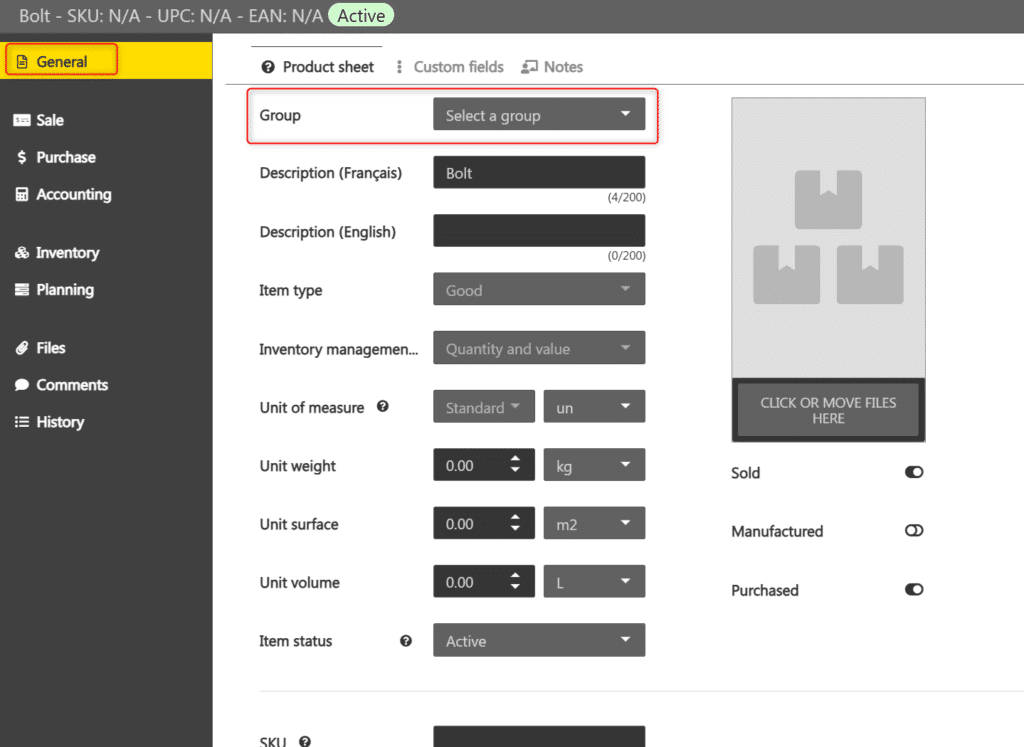
- In the General tab, select the desired group in the Group To unlink the item from the group, clear the field.
Delete an item group
Note: it is not possible to delete an item group if items are linked to it. First unlink the group from each affected item before deleting it.
- In Settings, go to the Items section, then Item groups.
- Click the desired group in the list.
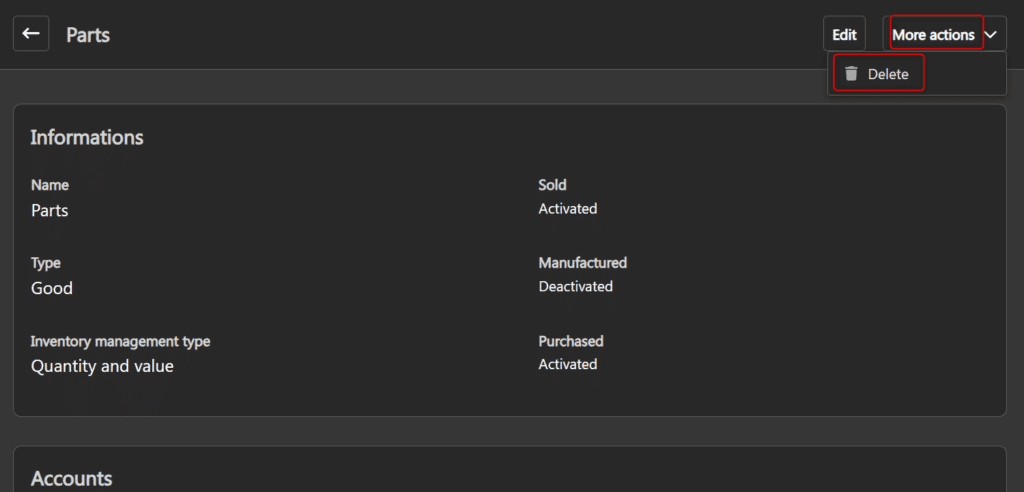
- Click More actions -> Delete in the top right.
- Confirm the deletion.