An item group allows you to define certain information once and automatically apply it to the items attached to it. Attaching an item to a group is optional: an item without a group retains all of its editable fields directly in the article record.
Fields defined by the group #
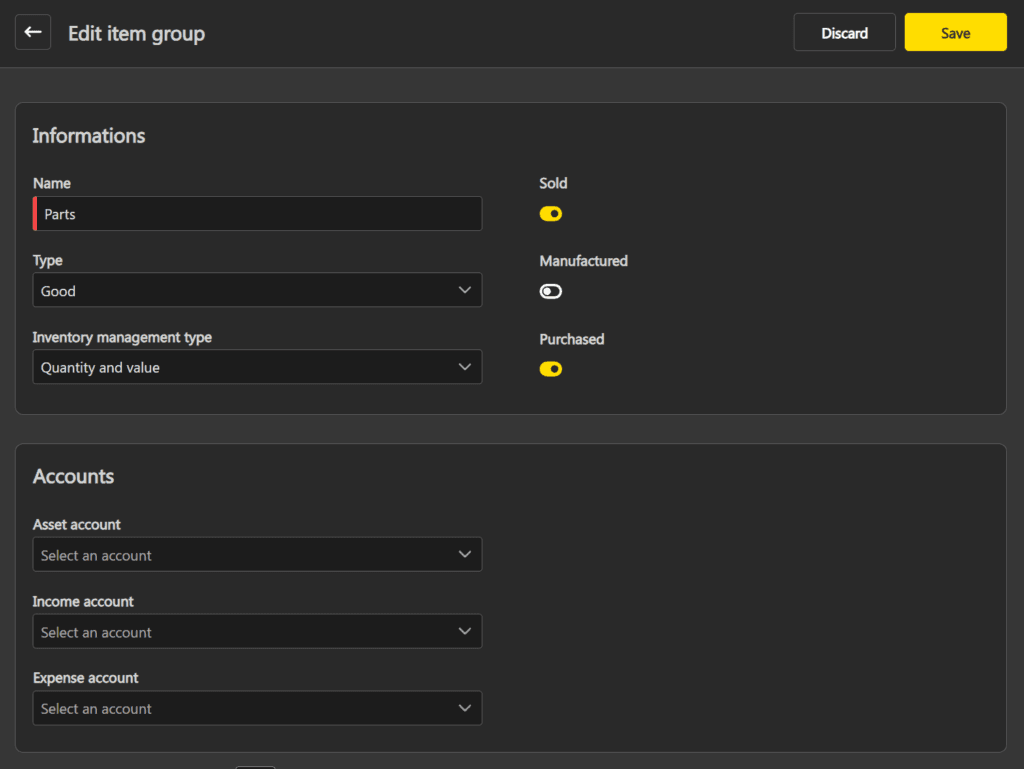
The fields below are defined by the group and cannot be modified in the file of a linked item. To modify them, you must go through the group: the change will apply to all items linked to it.
| Type | Nature of the item (good, service, or custom service). Visible in the General tab. |
| Inventory management type | How stock is managed. Visible in the General tab. |
| Sold | Toggle indicating whether the item is sold. Visible in the General tab. |
| Manufactured | Toggle indicating whether the item is manufactured. Visible in the General tab. |
| Purchased | Toggle indicating whether the item is purchased. Visible in the General tab. |
| Asset account | Asset account associated with the item. Visible in the Accounting tab. |
| Income account | Income account associated with the item. Visible in the Accounting tab. |
| Expense account | Expense account associated with the item. Visible in the Accounting tab. |
Create or edit an item group #
Note: it is not possible to modify the Type or Inventory management type of a group if items are linked to it.
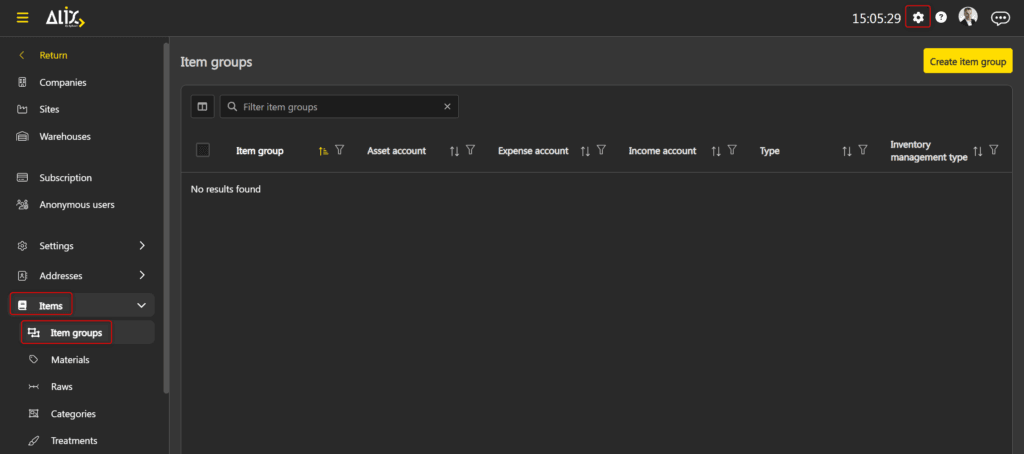
- In Settings, go to the Items section, then Item groups.

- Click Create item group in the top right, or click the desired group in the list to edit it.
- Enter or modify the requested information. See the Fields defined by the group section for details on each field.

- Click Save in the top right when you are done.
Link or unlink an item from a group #
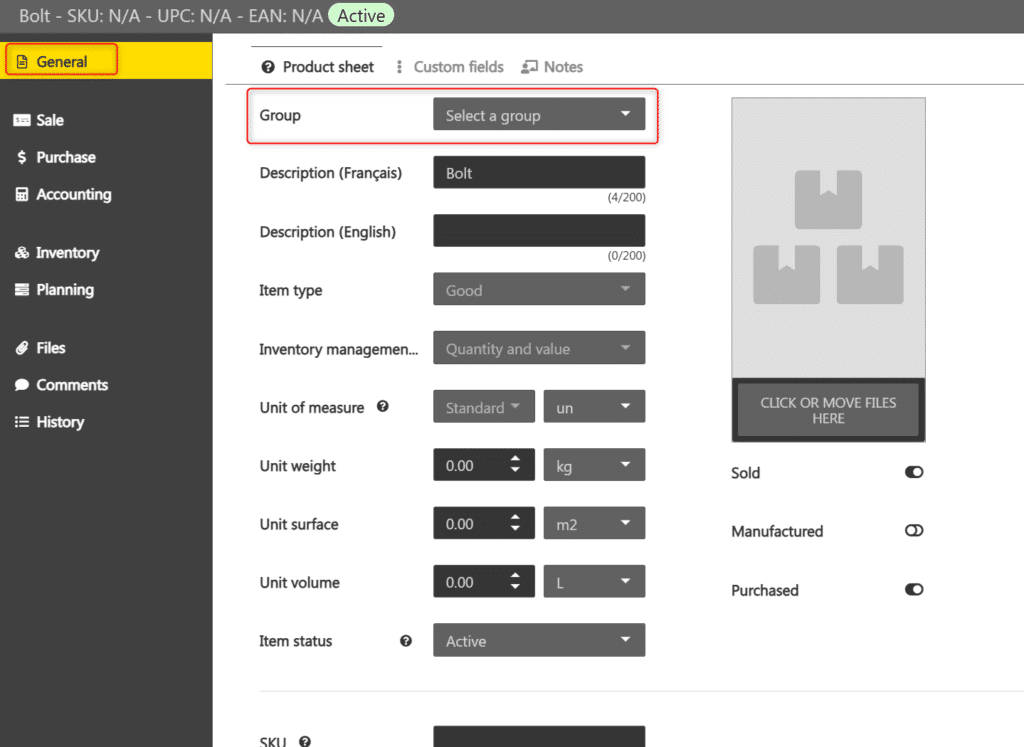
Linking an item to a group is done directly in the item file. It can be modified or removed at any time.
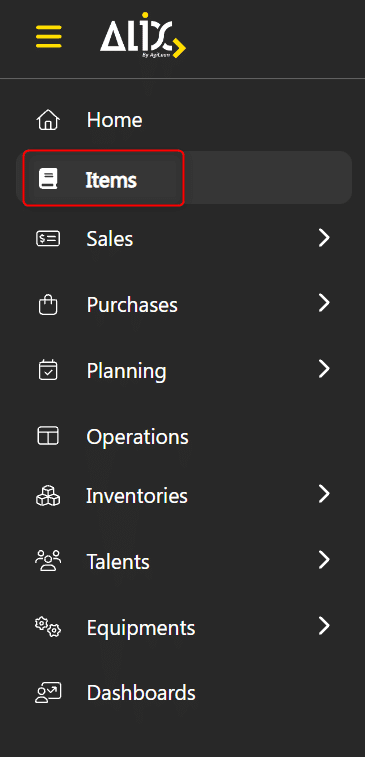
- In the menu on the left, choose Items.

- Select the desired item.
- In the General tab, select the desired group in the Group To unlink the item from the group, clear the field.

Delete an item group #
Note: it is not possible to delete an item group if items are linked to it. First unlink the group from each affected item before deleting it.
- In Settings, go to the Items section, then Item groups.
- Click the desired group in the list.
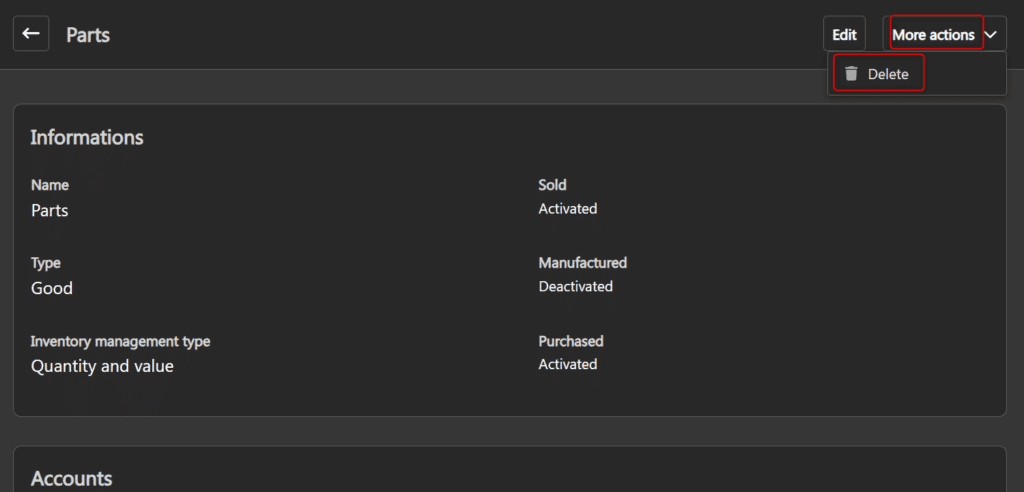
- Click More actions -> Delete in the top right.

- Confirm the deletion.