It is possible to create a purchase order directly from a sales order. The unreserved ordered quantity is used as the recommendation for the purchase order. A traceability link is maintained between the sales order and the purchase order created.
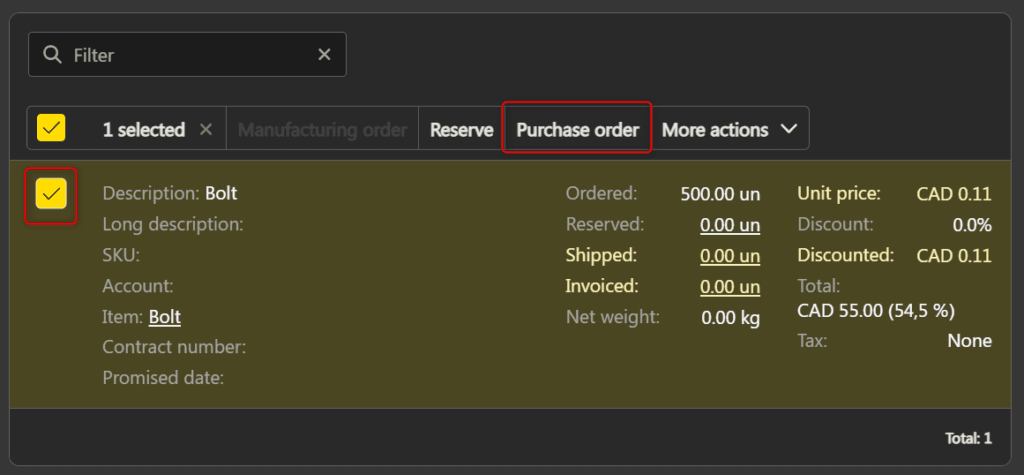
Note: The Purchase order button is available only if all selected items are purchasable and have unreserved quantity. The button is not available in edit mode or when a group is selected.
Create a purchase order #
- From the menu on the left, choose Sales -> Sales orders.
- Click on the desired sales order. The information for this order will appear on the screen.
- In the ordered items section, select one or more purchasable item lines. Click Purchase order in the action bar.

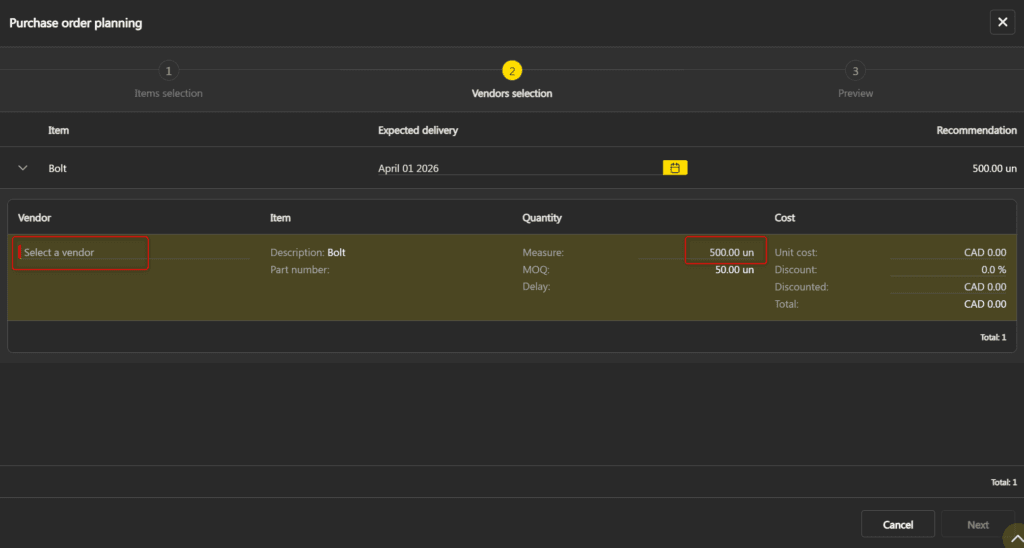
- The Purchase order planning window appears. Select the desired vendor, then verify the proposed measure. By default, the measure corresponds to the unreserved quantity of the line. It is possible to modify the measure to create a partial purchase order.

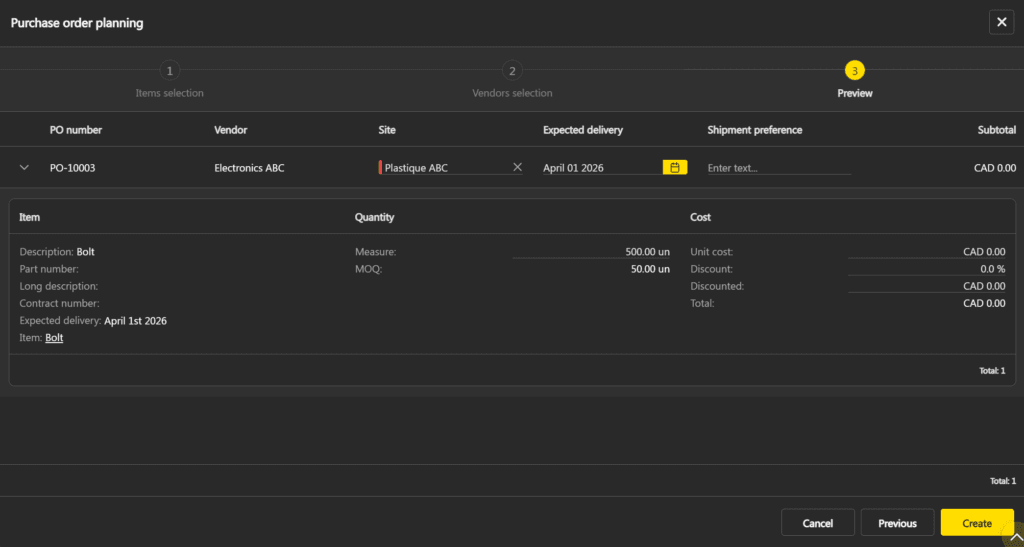
- Click Next to access the Preview. Verify the information, then click Create.

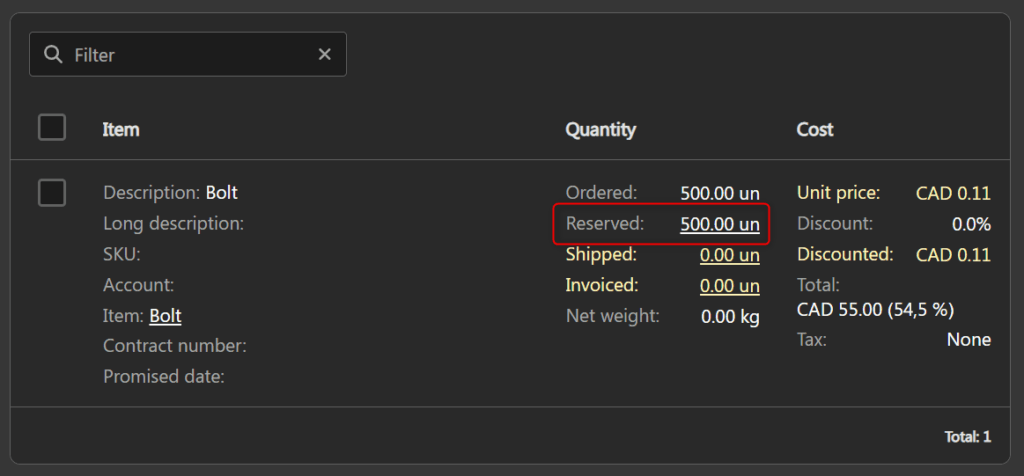
- The purchase order is created with the Draft status. The Reserved column of the item line is updated in the sales order. The Purchase order button remains active as long as there is unreserved quantity remaining, allowing you to create additional purchase orders as needed.

View reservations #
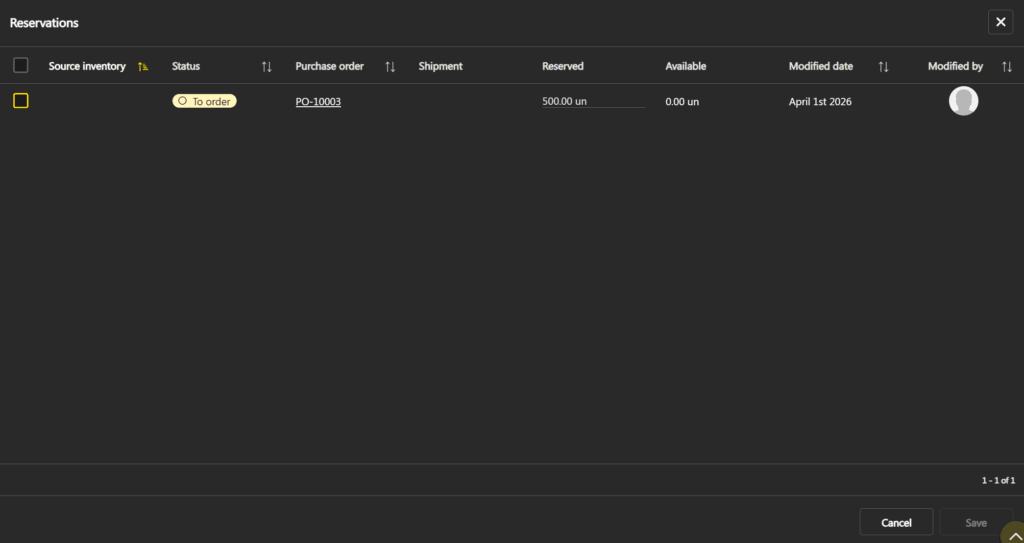
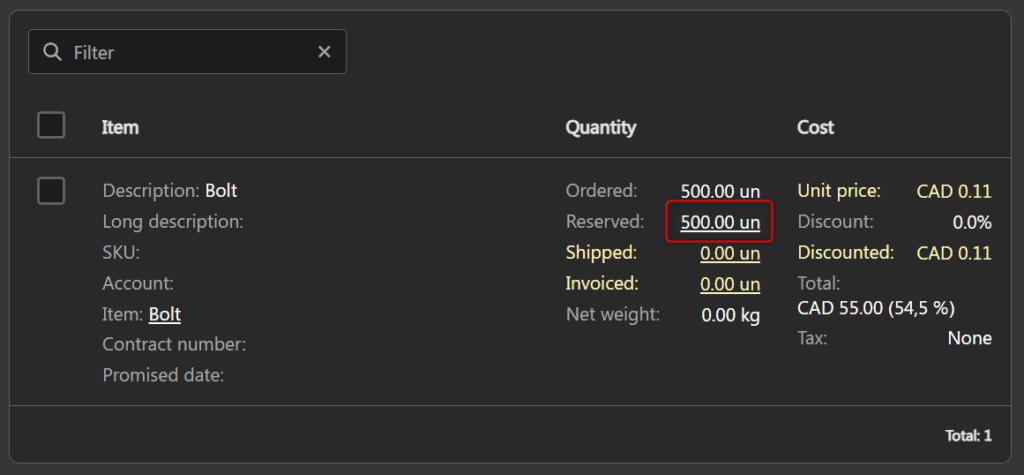
After the purchase order is created, the associated reservations are visible in the reservation popup of the item line.
- In the sales order, click on the value of the Reserved column of the item line.

- The popup displays the reservations, including those linked to purchase orders created from this order. The status indicates the state of the order:
| To order | The purchase order is in Draft status. No inventory has been created yet. |
| Ordered | The purchase order has been issued. An inventory with the Ordered status is associated with the reservation. |
- The purchase order name is displayed as a clickable link. Click on it to access the purchase order.