

Planned consumptions define the items that will be consumed during manufacturing. They are configured in the Planned consumptions section of a card or a production recipe.
Note: The actions described on this page require access to the planning module. See Security groups.
Planned consumption fields #
When you add a planned consumption, you must provide the following information:

| Field | Description |
| Item | The item that will be consumed. |
| Source inventory | The source inventory for this item (field not displayed if the selected item is a service or unmanaged). |
| Behaviour | Determines how the consumption is processed. The selected item must be manufactured and have a planned consumption to be able to select a behaviour. Standard: planned consumptions have no special interactions. Phantom: on copy from template, phantom planned consumptions are copied with their hierarchy. Available only if the target item is manufactured. |
| Step | The step at which the consumption is planned. |
| Auto consumption | When enabled, raw materials are automatically consumed when exiting the planned step. |
| Batch size | By default, displays the batch size of the card. If this field is modified, the link between it and the card batch size is broken. |
| Link button | When the link is broken between the batch size of the planned consumption and that of the card, click this button to link them. |
| Measure | Measure of each batch. |
| Blade width | This field only appears if the item dimension is in length. The blade width is added to the total quantity consumed. |
Add a planned consumption #
- Click + Add.
- Fill in the required fields. To understand each field, see Planned consumption fields above.
- Click Confirm when finished.
Import planned consumptions #
-> Feature coming soon
The import feature allows you to upload a file containing multiple planned consumptions at once. Imported consumptions are added to existing consumptions.
Note: If the file contains identical lines (same item, same measure, same unit and same parameters), only one consumption will be created.
Prepare the file #
The file must be in .csv or .xlsx format and contain a maximum of 100 data lines (excluding the header).
Each line represents a planned consumption. The available columns are:
| Field | Required | Description |
| SKU | Yes | The SKU of the item to consume. Must match an existing item in ALIX. |
| Measure | Yes | The measure of each batch. Must be a numeric value. |
| Unit | No | The unit of measure (e.g.: kg, lb, un). Must be compatible with the item dimension. |
| Batch size | No | The batch size for this consumption. |
| Consumption step | No | The name of the step at which the consumption is planned. Must match an existing step in the card. |
| Auto consumption | No | Indicates whether the consumption is automatic. Accepted values: true, false, yes, no, 1, 0. Default: false. |
| Behaviour | No | The behaviour type: standard or phantom. Default: standard. The phantom behaviour requires the item to be manufactured and have a production recipe with planned consumptions. |
| Source inventory | No | The numeric tag of the source inventory. |
Note: The column names in the file do not need to exactly match the names above. The mapping step allows you to associate each column in the file with the corresponding field in ALIX.
Import the file #
- Click Import.
- In the Import planned consumptions window, drop or select your file at the Drop a file
Note: The file must be in CSV or Excel format. If the file contains more than 100 data lines, an error message is displayed and the import is blocked.

- Click Next.
- At the Map columns step, associate each column in your file with the corresponding field in ALIX. Some columns may be detected automatically.

- Click Next.
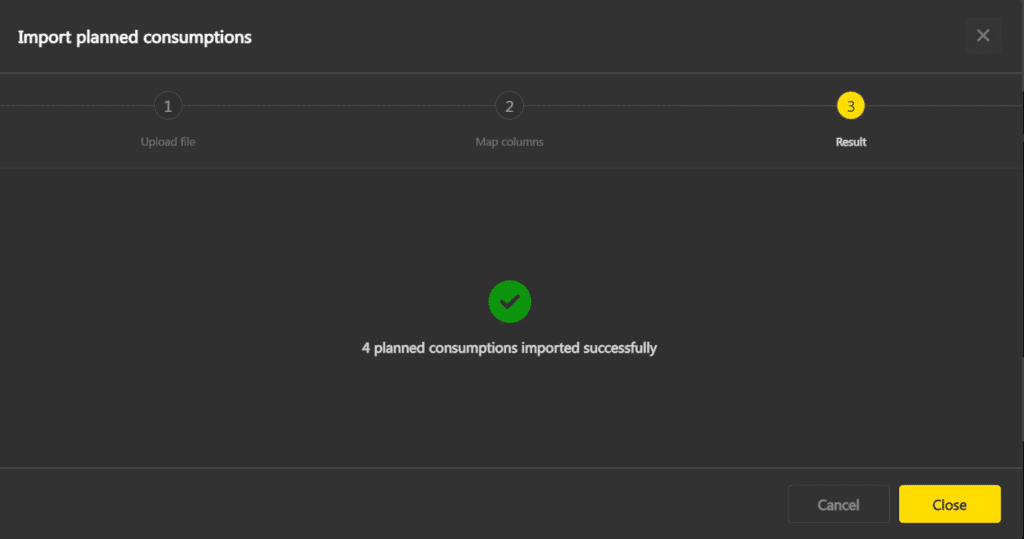
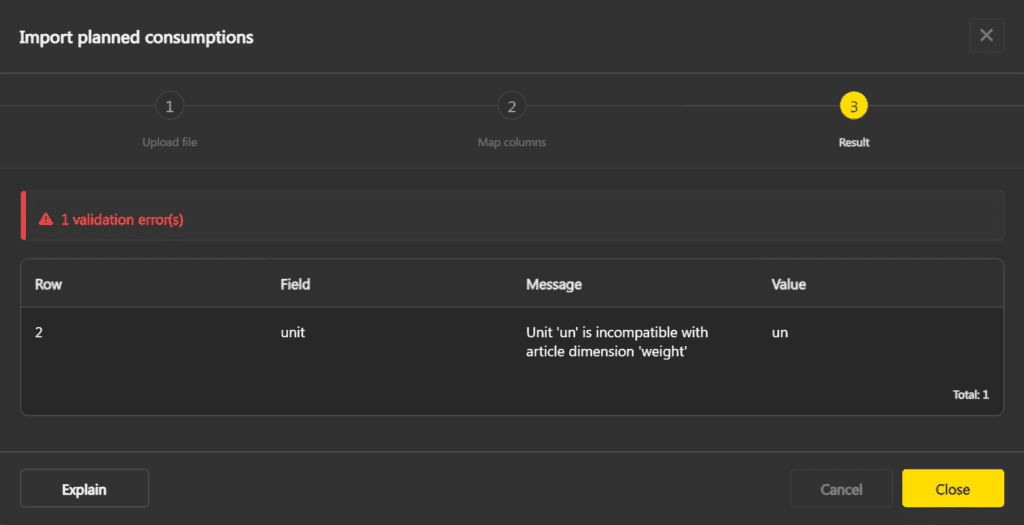
- The Result step displays the import result.
If the import is successful, a confirmation message indicates the number of planned consumptions imported.

If errors are detected, a table displays the detail of each error: the line number, the field concerned, the error message and the problematic value. Correct the errors in your source file, then re-import the file.
Click Explain to get more details on an error, including the cause, valid values and how to correct the file.

- Click Close to exit the wizard.


Common errors #
| Error | Cause | Solution |
| SKU required | The SKU column is empty for this line. | Add the item SKU in your file. |
| Measure must be numeric | The value in the Measure column contains text. | Correct the value so it is numeric (e.g.: 10, 5.5). |
| SKU not found | The SKU does not match any item in ALIX. | Check the SKU spelling or create the item before importing. |
| Unit incompatible with item dimension | The specified unit does not match the item dimension (e.g.: kg for a quantity item). | Use a unit compatible with the item dimension. Click Explain to see the valid units. |
| Invalid value (Auto consumption) | The value is not recognized. | Use true/false, yes/no, or 1/0. |
| Invalid value (Behaviour) | The value is not ‘standard’ or ‘phantom’. | Use ‘standard’ or ‘phantom’. |