

Reporting tags are used to organize transactions in Zoho Books. To be able to use them, they must have been set up in Zoho Books and then synced to ALIX.
Add reporting tags for a shipping transaction #
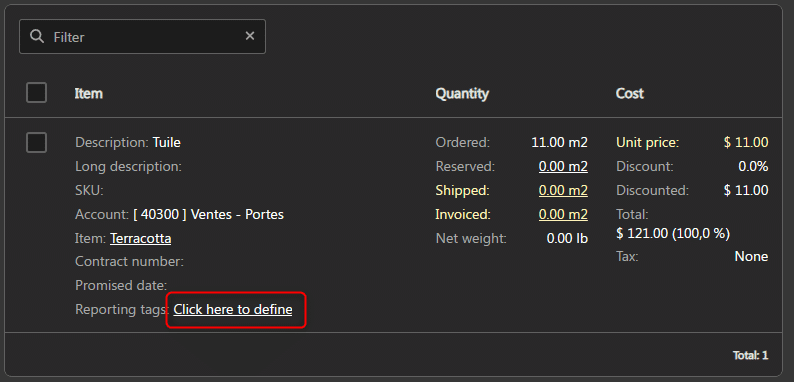
Reporting tags for a shipping transaction must be added to each item in a sales order.
- From the menu on the left, choose Sales -> Sales orders.
- Click on the desired sales order. The information for this order appears on the screen.
- In each item in the order, click Click here to define, right next to Reporting tags.

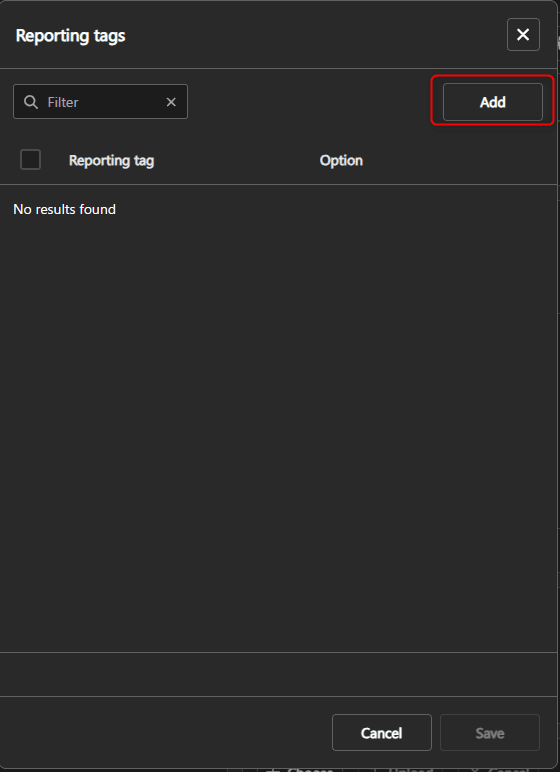
- Click Add.

- Choose the desired tag and option.

- Add as many tags as you want, then click Save when you’re done.
- The number of tags added is now visible on the line item. You can click on it to view or edit the tags.



Add report tags for a consumption transaction #
Reporting tags on cards are handled differently depending on the type of card:
| Sales order | The reporting tags on a Sales order card are linked to the reporting tags on the sales order line item. Any tag changes made in the card or the order will automatically reverberate everywhere. |
| Manufacturing order | When a Manufacturing order card is created, the line item tags are transferred to the card. If you change the tags directly on the card, the sales order line item remains unchanged. On the other hand, if you change the tags in the command line, those on the cards are erased and replaced by the new ones. |
To add or edit tags on a card :
- From the menu on the left, choose Planning, and then choose Projects.
- Select the desired project, then click the Cards tab at the top of the screen.

- Click on the name of the desired card.

- Click the Reporting tags section.

- You can add, edit or remove tags here.


Note: When consuming a child card, the tags saved for the transaction are those of the parent card (highest parent in hierarchy).
View transaction reporting tags #
- In the settings, go to the Accounting section, then Transactions.

- Click on the desired transaction.
- On a transaction row, click Reporting tags.

- You can view the tags for this transaction.


