

It is possible to group cards in the operations board to facilitate batch actions.
Note: the group and ungroup card actions are also possible in the Planning -> Cards module.
Here are some rules to follow:
- It is possible to group a maximum of 10 cards.
- It is not possible to group a card that is already grouped.
- Only cards that are in the same waiting step can be grouped.
- Once the group is formed, actions performed on one card in the group apply to all cards in the group, except printing.
Group cards #
- From the menu on the left, choose Operations.

- Select at least 2 cards in the same waiting step.

- Click More actions at the top left, then Group.

- The group appears as a stack. The number of cards in the group is visible at the top right of the group.


Move group in operations board #
A group moves in the same way as a card:
- Move it directly with the mouse to the desired step.
- Double click on the button to the right of the group to send it to the next step.

- Click Move at the top left to send it to the next step.


Note: If the equipment cannot receive all the cards in the group, movement will not be possible.
View grouped maps #
- From the menu on the left, choose Operations.
- Click on the desired group. A window opens, showing the list of grouped cards.

- Click on the desired card. A new window opens with the card information. This is the same window that opens when you click on a card directly on the board.


Print grouped cards #
Printing is the only action that does not apply to all cards in the group.
There are multiple ways to print:
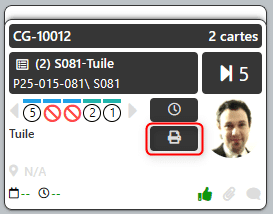
- Click the printer icon on the top card of the stack to print the first group card.

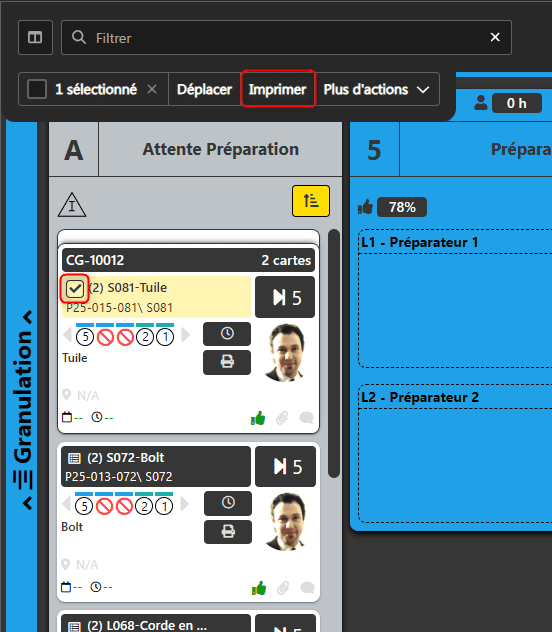
- Select the group, then click Print at the top left to print the first group card.

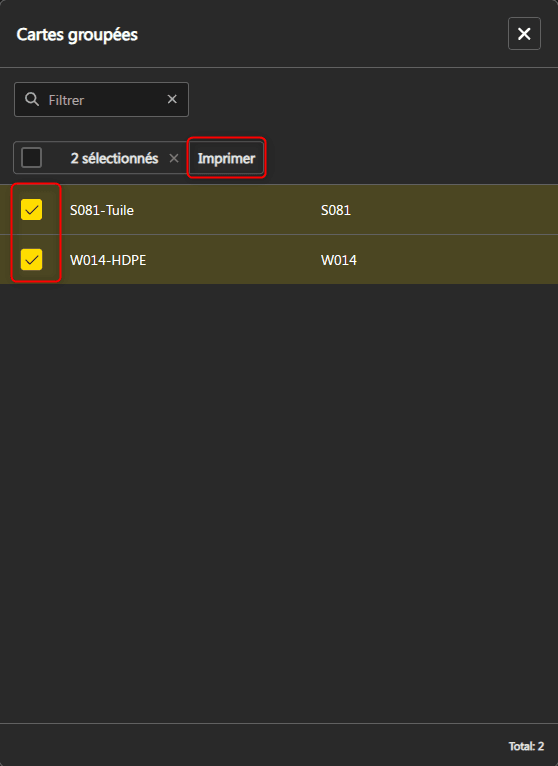
- Click on the desired group. Select the cards to print, then click Print at the top of the list.

Ungroup cards #
- From the menu on the left, choose Operations.
- Select the desired group.

- Click More Actions at the top left, then click Ungroup.


