

Display inventories with a net flow of zero in the add reservation popup #
In a sales order, when reserving inventories, it is possible to display or not the inventories at zero.
- In Settings, go to the Settings section, Configurations, and then Inventory.
- Choose Display inventories with a net flow of zero in the add reservation popup.


Allow reservations on inventory production #
In a sales order, when reserving inventories, it is possible to reserve or not on inventories with the status Standby.
- In Settings, go to the Settings section, Configurations, and then Inventory.
- Choose Allow reservations on inventory production.


Show markups on sales order line items #
In a sales order, it is possible to add markups on the line items to adjust the sales price.
- In Settings, go to the Settings section, Configurations, and then Project.
- Choose Show markups on sales order line items.


Show discounts on sales order line items #
In a sales order, it is possible to add discounts on the line items to adjust the sales price.
- In Settings, go to the Settings section, Configurations, and then Project.
- Choose Show discounts on sales order line items.


Enable automatic reservation for all inventory conditions #
- In Settings, go to the Settings section, Configurations, and then Inventory.
- Choose Enable automatic reservation for all inventory conditions.


Default shipment invoicing method #
When invoicing in a sales order, when the selected line items are shipped, it is possible to choose which shipment invoicing method will be offered by default.
| Shipped quantity | Invoices the shipped quantity of the selected line items. |
| Associated shipments | Invoices all items in shipments that are associated with the selected line items. |
- In Settings, go to the Settings section, Configurations, and then Project.
- Choose Default shipment invoicing method.


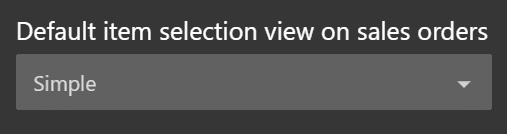
Default item selection view on sales orders #
When you add an item to a sales order, a selection window opens. This window offers two display modes: simple view and detailed view. You can choose the default view. To learn more about the two display modes, click here.
- In Settings, go to the Settings section, Configurations, and then Project.
- Choose Default item selection view on sales orders.

Rename columns on sales order PDFs #
You can customize the column titles displayed on sales order PDFs. Each column can be renamed separately in French and English. If a field is left empty, the default title is used.
The customizable columns are: Item, SKU, Quantity, and Unit price.
- In Settings, go to the Settings section, Configurations, and then Project.

- Enter the desired title (maximum 30 characters) in the following configurations:
- Column title on sales order PDFs for “Item” (Français) and (English): replaces the Item column title.
- Column title on sales order PDFs for “SKU” (Français) and (English): replaces the SKU column title.
- Column title on sales order PDFs for “Quantity” (Français) and (English): replaces the Quantity column title.
- Column title on sales order PDFs for “Unit price” (Français) and (English): replaces the Unit price column title.


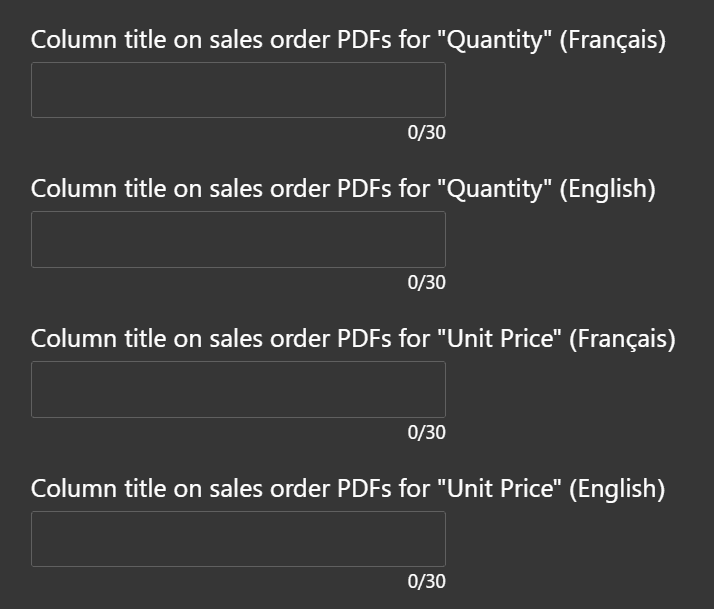
Note: The custom title applies to the PDF view, PDF download, and printing. The document language determines which title (French or English) is displayed.
More documentation coming soon for configurations.