

Show the sales order reference number #
-> Available from ALIX 11.24.0. How do I find out the current version?
The packing slip can display the sales order reference number (# reference field from the sales order) under each item line. When the option is enabled, the reference number appears with the prefix “Ref:” below the sales order number. If an item line does not have a sales order reference number, no “Ref:” line appears for that item.
Note: the default display of this option can be set in the configurations. For more information, see the Shipments configurations page.
- From the menu on the left, choose Inventories -> Shipments.
- Click on the desired shipment. A window with the shipment information appears.
- On the Packing slip tab, check or uncheck Show sales order reference number.


Show information about hazardous materials #
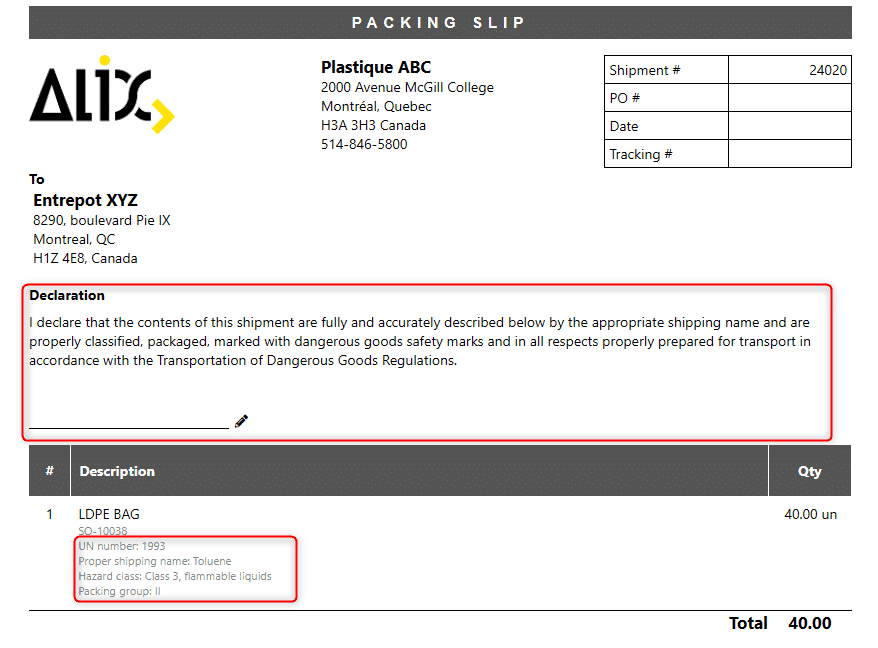
If the item being shipped is a hazardous material, you can display its information on the packing sliip, along with a signature on the hazardous material declaration.
To learn how to add this information to an article, click here.
- From the menu on the left, choose Inventories -> Shipments.
- Click on the desired shipment. A window with the shipment information appears.
- On the Packing slip tab, select Show UN numbers and Show declaration.

Note: the default display of these two elements can be set in the configurations.
- The packing slip contains the information.


Amending the declaration of transport of dangerous goods #
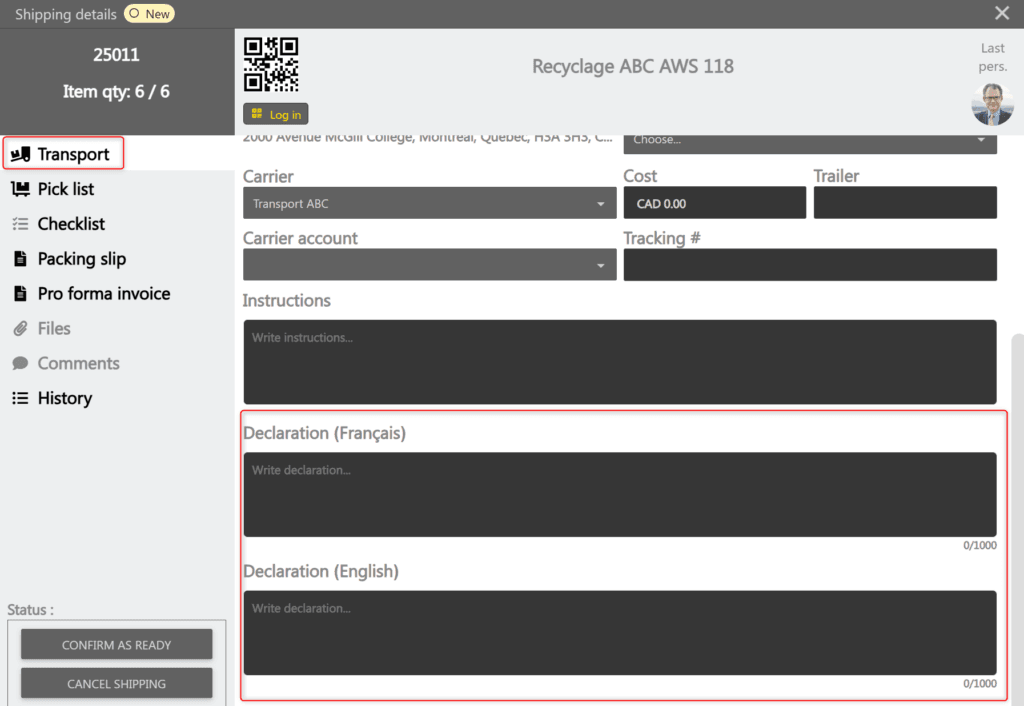
The declaration can be set by default in configurations. It is also possible to edit it directly in an expedition.
- From the menu on the left, choose Inventories -> Shipments.
- Click on the desired shipment. A window with the shipment information appears.
- On the Transport tab, edit the Declaration (Français) and Declaration (English) fields.

- Once done, you can leave the page. The information in this window is saved automatically.
Custom unit breakdown on the packing slip #
-> Available from ALIX 11.24.0. How do I find out the current version?
When a shipment line uses a custom unit, the packing slip displays the quantity breakdown in the Qty column: the quantity entered in the custom unit, multiplied by the Format, gives the quantity in the stock unit.
For lines that do not use a custom unit, the Qty column remains on a single line, without breakdown.

To configure a custom unit on an item, see the Custom unit section of the Sale tab page.
Show available quantity #
-> Available from ALIX 11.24.0. How do I find out the current version?
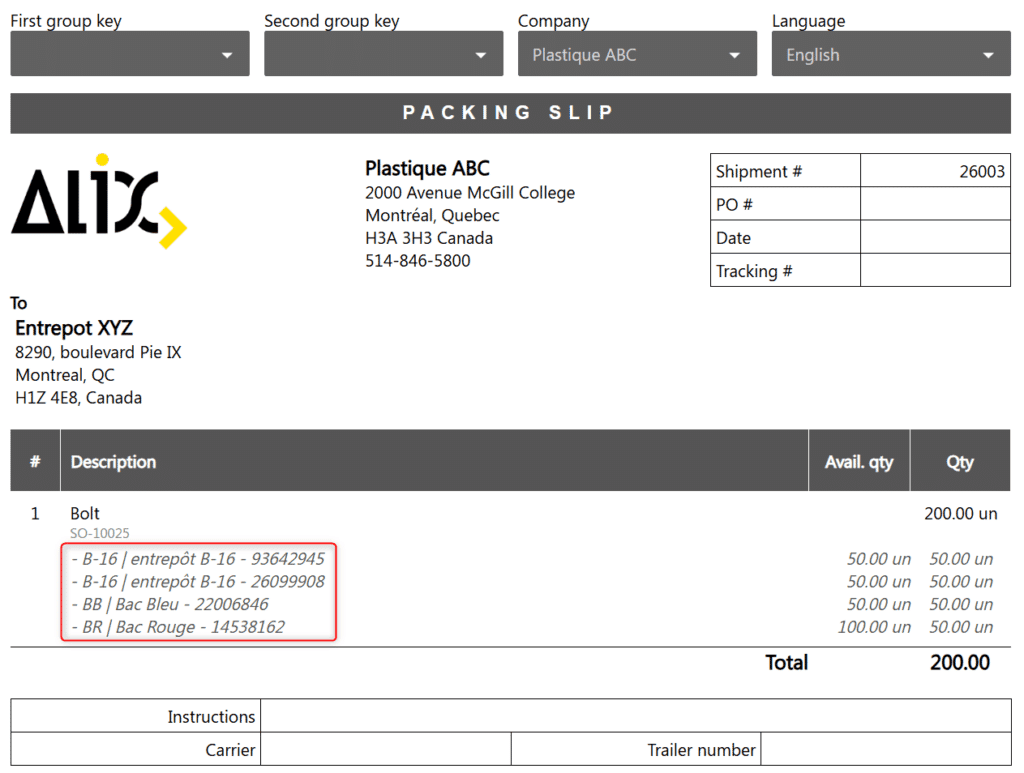
The packing slip can display the available quantity in inventory for each picked inventory. When the option is enabled, a Available qty column appears to the left of the Qty column in the items table.
The available quantity is displayed only on the inventory sub-lines (in stock unit), not on the parent line. If the current stock inventory is zero, the cell remains empty.
Note: the default display of this option is controlled by a global configuration. For more information, see the Shipments configurations page.
- From the menu on the left, choose Inventories -> Shipments.
- Click on the desired shipment.
- On the Packing slip tab, check or uncheck Show available quantity.


Show inventory location #
-> Available from ALIX 11.24.0. How do I find out the current version?
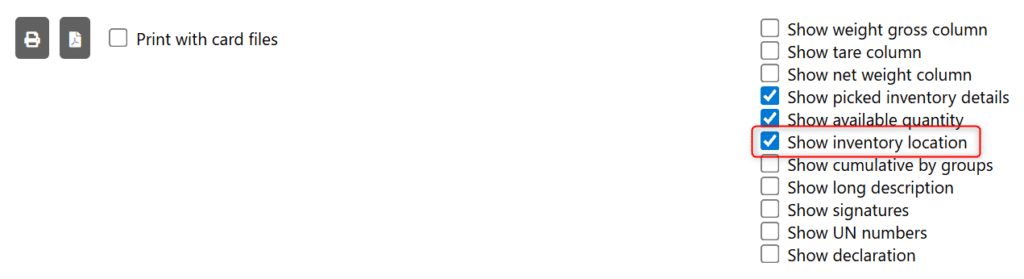
The packing slip can display the location prefix in front of the tag of each picked inventory. When the option is enabled, the inventory sub-line tag is displayed as Location – Tag. The serial number suffix is preserved if present.
For an inventory that has no associated location, the option has no visible effect.
Note: the default display of this option is controlled by a global configuration. For more information, see the Shipments configurations page.
- From the menu on the left, choose Inventories -> Shipments.
- Click on the desired shipment.
- On the Packing slip tab, check or uncheck Show inventory location.


More documentation to come for packing slips.