

The schedule allows you to view and organize cards on a calendar. You can view cards scheduled by talent or by project, and move them by drag-and-drop to adjust dates and assignments.
Note: This feature is in BETA mode. To access it, activate the Enable feature early access configuration.
Access the schedule #
- From the menu on the left, choose Planning -> Schedule (BETA).

- The schedule displays with the following elements:
- Talent view / Project view: at the top left, to switch between the two display modes.
- Day / Week: at the top right, to choose the displayed period.
- Today and the navigation arrows: to move through the calendar.
- Filter: the search bar and the filter icon at the top allow you to filter the displayed cards.
- Show business hours: at the bottom of the schedule, to limit the display to business hours.


Talent view #
The Talent view displays one row per talent. Cards appear as blocks on the timeline of the talent to which they are assigned. Cards without an assigned talent are found in the Unassigned row.
The following actions are available:
| Move a card in time | Take a card with the mouse and drag it to another time slot on the same row. A confirmation message appears. After confirmation, the new dates are saved. |
| Reassign a card to another talent | Drag a card to another talent’s row. After confirmation, the card is assigned to the new talent and the dates are adjusted according to the drop location. |
| Unassign a card | Drag a card to the Unassigned row to remove the talent assignment. |
| Change a card’s duration | Resize the block of a card by dragging its right edge to adjust the end time. |
| Open the full card | Click on a card to open its full card. |
Note: Each move or resize is confirmed by a message. If you cancel the confirmation message, the card returns to its original position.

Project view #
The Project view displays cards grouped by project. The same actions for moving in time, resizing and opening the full card are available.
Note: It is impossible to change a card’s project by drag-and-drop in the Project view. A message appears if you attempt to move a card to another project.

Scheduling fields on cards #
Three fields determine the position of a card in the schedule. They can be edited directly in the Description section of a card’s full card, in the Cards section of a project and in the Planning -> Cards grid.
- Start time: the planned start date and time for the card.
- End time: the planned end date and time for the card.
- Assigned talent: the talent responsible for the card. This field determines which row the card appears in when using Talent view.

Note: The end time must always be after the start time. Time increments are 15 minutes.
To edit these fields in a card’s full card:
- Open the full card of the card.
- Edit the Start time, End time or Assigned talent. Each modification is saved automatically.
Note: Changes made in the full card are immediately reflected in the schedule, and vice versa.
The Start time, End time and Assigned talent columns are also available in the Planning -> Cards grid. They can be added, sorted and filtered like any other column in the grid.

Filter cards by scrap status #
-> Available from ALIX 11.24.0. How do I find out the current version?
The Scrap status filter allows you to quickly identify cards with scrap on their main production.
- At the top, click the Filters icon.

- In the Select a scrap status dropdown, choose an option:
With scrap Displays only cards whose main production has scrap. Without scrap Displays only cards whose main production has no scrap. - Click Apply.
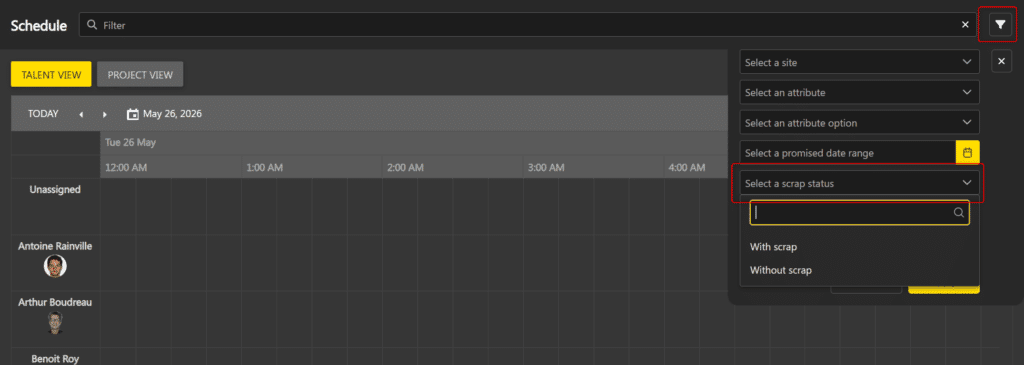
To remove the filter, click the ✕ to the right of the dropdown or click Clear to clear all filters.