

It is possible to create one or more production recipes for an item. By default, the production recipe will have the same Item name, Part number, and Revision.
To display the Production tab for an item, turn on the Manufactured toggle.

Create a production recipe #
- From the menu on the left, choose Items.
- Click on an item that can be manufactured.
- Navigate to the Production tab.

- Create a new production recipe by clicking on the + on the left, duplicate the selected recipe by clicking on the copy button or delete a recipe by clicking on the –.

- Production recipes contain the same fields and sections as items. Items created from production recipes are already populated by them.
- You can choose a favorite recipe from the drop-down list by clicking on the star. The favorite recipe is the one used by default when creating a card.


Add an inventory production #
Note: by default, a production of 1 of the current article will be added.
- Click + Add in the Inventory Production section.

Note: the Main star identifies the main planned production. This production is the one used for the planned measure count on the card and for the production and scrap percentage calculation.
- Follow the instructions in the next section: Add inventory production.

Plan the steps #
- In the Production tab, click on the Steps section.
- Plan the different steps of the production recipe. To learn more about planning, click here.


Add/edit a checklist on a step #
You can either add an existing list or create a new one by following the instructions below.
Add an existing checklist #
- Select the wanted checklist.

- You can use the checklist as is or modify it by clicking the toggle button.


Create a new checklist #
- Click the toggle button, select the wanted checklist, and then click Create.


Plan the use of tools #
You can define the tools that will be used for this production recipe.
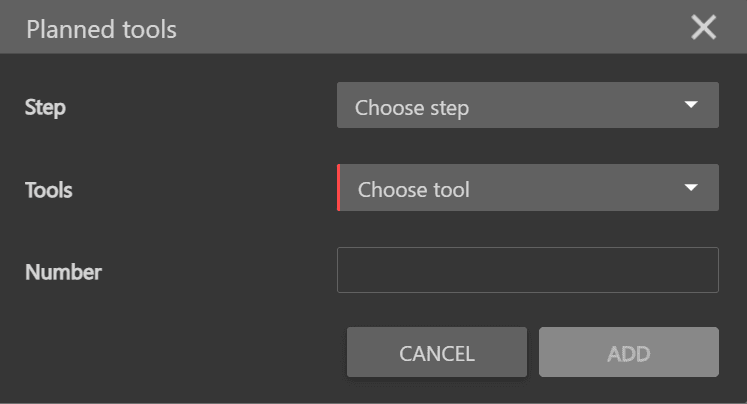
- On the Production tab, click the Planned tools section.
- Click + Add. A window opens.
- Enter the requested information, and then click Add.

Add planned consumption #
On the Production tab, click the Planned consumptions section. Click + Add or Import. For field details and steps, see Planned consumptions.
Tare/Weight #
- On the Production tab, click the Tare/weight section.
- Enter the requested information, some additional details are given below :

- Auto consumption: when setting net/gross weight, consume raw materials.
- Gross or net: determines the calculation priority to gross or net. Active: priority to net, inactive: priority to gross.
- Inventory production: when this option is active, the inventory production is updated to the change in net card weight.
