

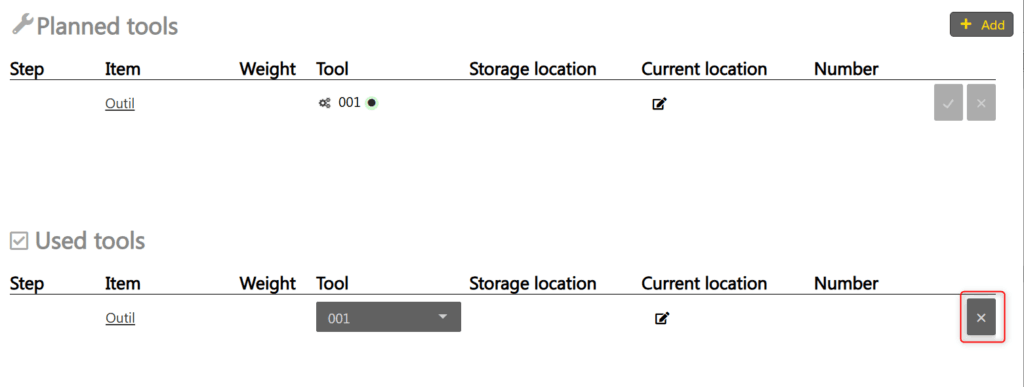
Planned tools allow you to associate tools with a production card. A planned tool goes through two states: planned (ready to be used) then used (confirmed as in use on the card).
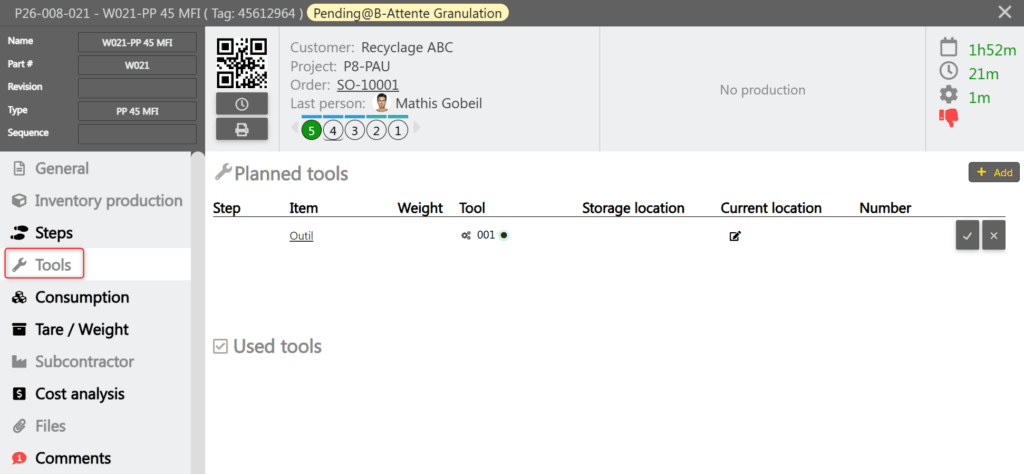
The Tools tab is accessible in two places:
- In the full card on the operations board: the tab displays two sections, Planned tools and Used tools. This is where tools are planned and used.
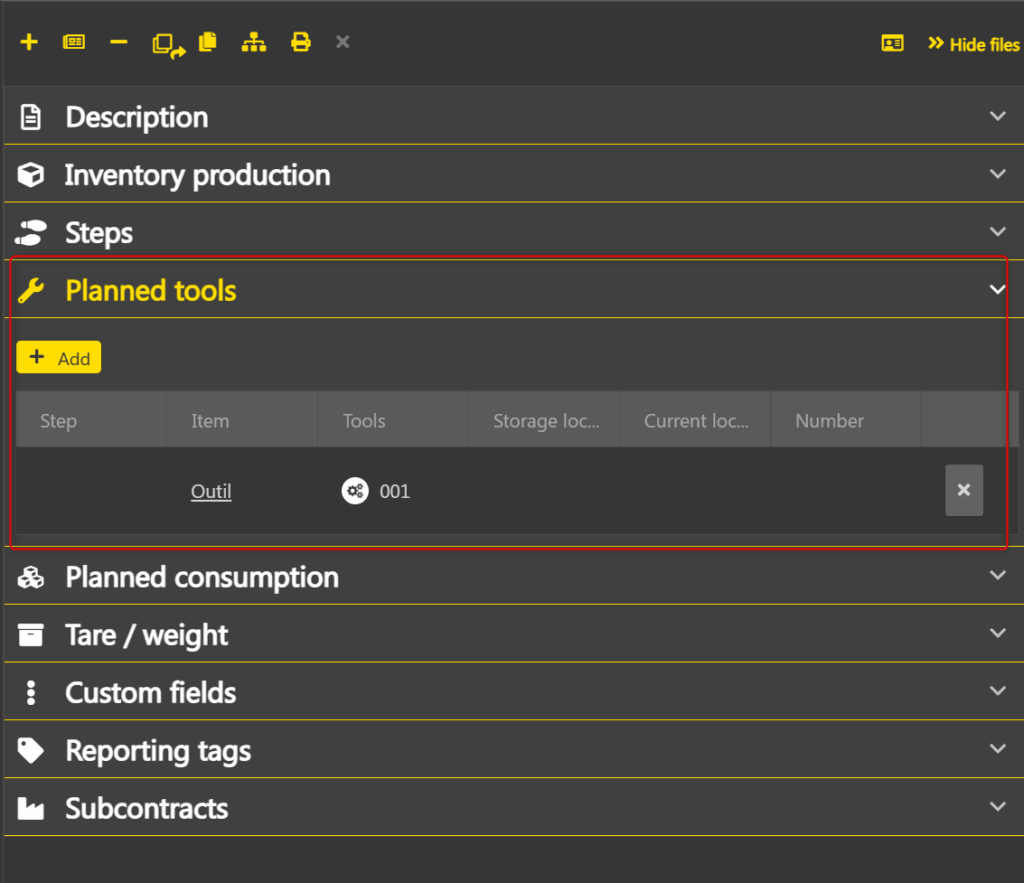
- In the card in planning: the tab displays only the Tool planning Tools can be added and removed, but not marked as used. The Used tools section is not visible in planning.
Add a planned tool #
Adding a planned tool is possible both from the card in planning and from the full card on the operations board.
To add a planned tool:
- In the Tools tab of the card, click + Add.
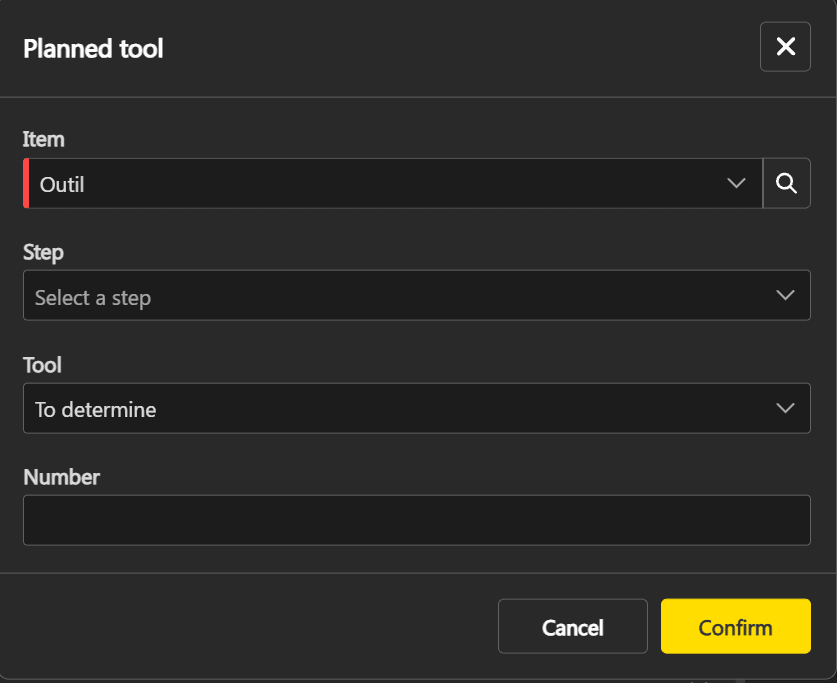
- Select the Item (required). Only tool type items are available.
- Select the Step (optional). If no step is selected, the planned tool applies to the card without being linked to a specific step.
- Select the Tool (optional). By default, the field is set to To determine, which allows planning without assigning a specific tool. The tool will be chosen at the time of use.
- Click Confirm.
The planned tool appears in the Planned tools section.
Use a planned tool #
Using a planned tool can only be done from the full card on the operations board. This action is not available in planning.
To mark a planned tool as used, click the confirmation button (checkmark) on the planned tool’s row.

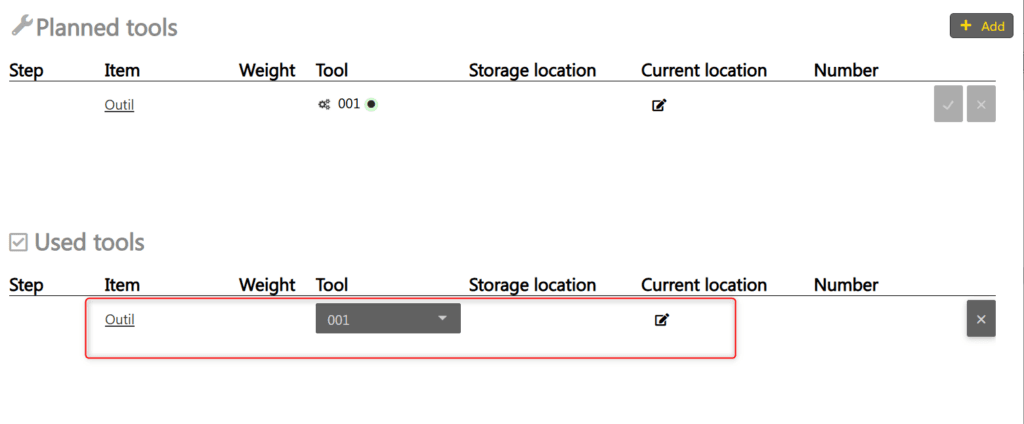
- If a tool is already assigned, the planned tool moves directly to the Used tools
- If the tool is set to To determine, a popup opens to select the tool to use. The dropdown shows only active tools of the same item. Each tool’s usage count is displayed in the dropdown.
The tool moves from the Planned tools section to the Used tools section.
Use is blocked if the tool is inactive. An error message is displayed.
Cancel a use #
Cancelling a use can only be done from the full card on the operations board.
To cancel a tool’s use, click the cancel button (x) on the row in the Used tools section. The tool moves back to the Planned tools section. The assigned tool remains associated with the row.
Edit a planned tool #
Editing a planned tool is possible both in planning and on the operations board. Click on the planned tool’s row to open the edit popup.
In the Used tools section (on the operations board), it is also possible to change the assigned tool via the dropdown in the Tool column. The dropdown shows only active tools of the same item, with their usage count.
The following restrictions apply to used planned tools:
- The Item and Step cannot be changed.
- The tool cannot be removed (set back to To determine).
Delete a planned tool #
Deletion is possible both in planning and on the operations board.
An unused planned tool can be deleted by clicking the delete button (x) on its row in the Planned tools section. Deleting a used planned tool is blocked.

Automatic counter incrementing #
When an inventory production is performed on a card, the usage counters of used planned tools are automatically incremented. The increment corresponds to the quantity produced.
Incrementing applies only if all of the following conditions are met:
- The planned tool is marked as used.
- The planned tool’s step matches the production step, or the planned tool has no step assigned.
- The produced item is in Standard.
- Each tool is incremented only once per production, even if it appears on multiple planned rows.
Both counters are incremented: the Total counter and the Since maintenance counter. For more information on counters, see the Tools page.
Block production on unused planned tools #
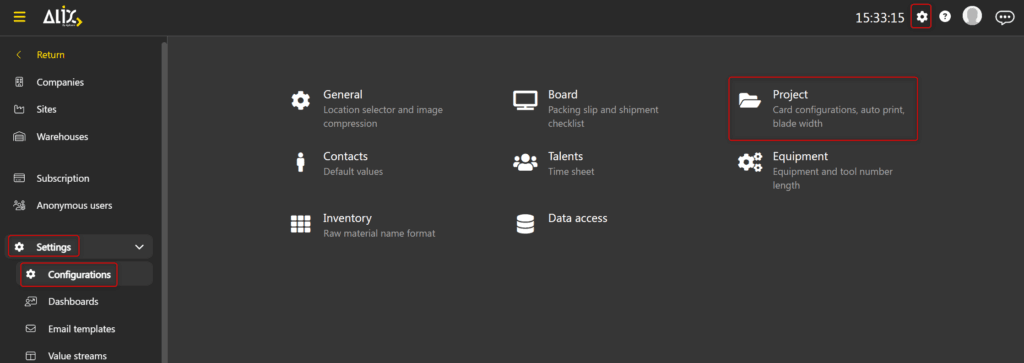
The Block production and time entries on unused planned tools setting is found in Settings -> Settings -> Configurations -> Projects. It is disabled by default.
When this setting is enabled, inventory production and time entries are blocked on a step as long as all planned tools for that step are not marked as used.

Equipment time entries and planned tools #
When an equipment time entry is added on a card, the same time entry is automatically duplicated on all planned tools marked as used at the corresponding step. Planned tools that are not marked as used do not receive a time entry.
The matching between the time entry and planned tools follows the same logic as counter incrementation: the time entry step must match the planned tool step, or the planned tool has no assigned step.
This behavior also applies when a card advances to a new step and an equipment time entry is triggered.
For details on equipment time entry (input methods, calendar or clock, adding or removing time), see the Time management on cards page.