Apply a custom unit on a purchase order line
-> Available from ALIX 11.24.0. How do I find out the current version?
The custom unit allows purchasing an item in a unit different from its stock unit. This page describes how to apply or edit it on a purchase order line.
To set a default custom unit on an item, see the Custom unit section of the Purchase tab page.
Note: it is impossible to apply a custom unit if the purchase order is no longer in Draft.
Apply a custom unit to a line
Note: if the item or the vendor has a default custom unit defined, it is applied automatically to the line. If both are defined, the vendor’s custom unit takes priority. Skip to the Edit the custom unit of a line section to adjust the values.
- From the menu on the left, choose Purchases -> Purchase orders.
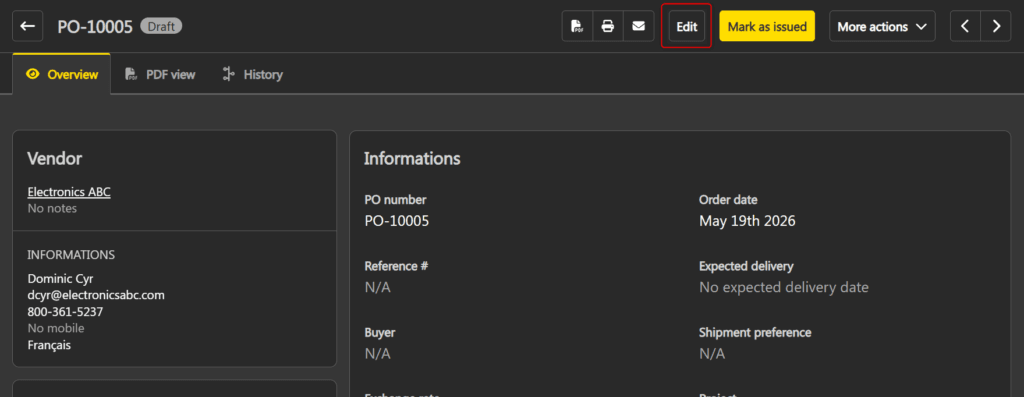
- Open the desired purchase order, then click Edit in the top right.
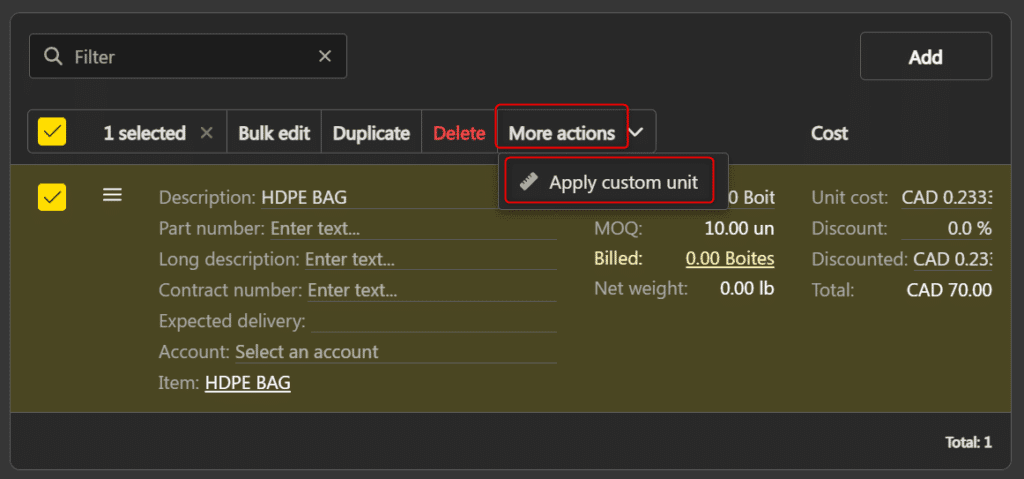
- Select the desired item line, click More actions -> Apply a custom unit.
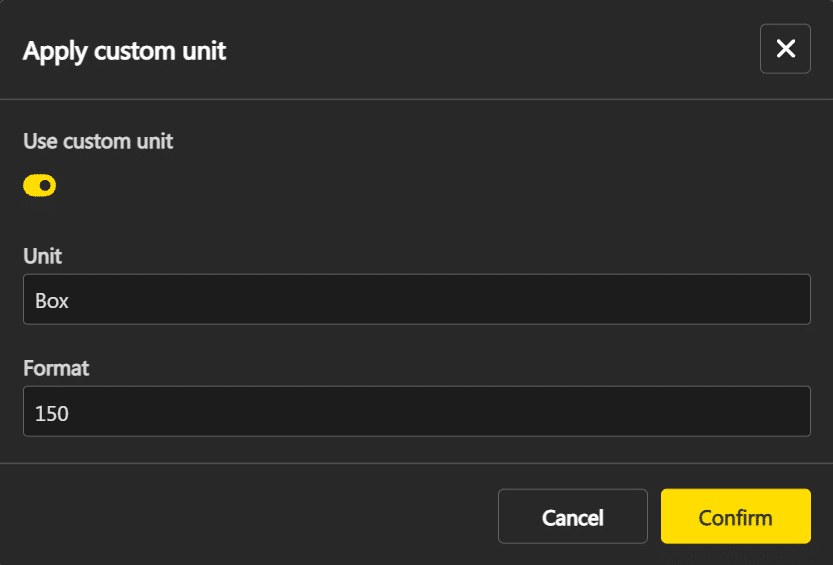
- In the window, fill in the fields:
- Unit: name of the unit (e.g. “box”).
- Format: conversion factor to the stock unit (e.g. 150 for a 150-unit box).
- Click Confirm.
Edit the custom unit of a line
As long as the purchase order is in Draft and the line is not associated with a bill, you can edit the values of the custom unit.
| Edit the format | Edit the value directly in the line item. The stock quantity and unit price are recalculated automatically. |
| Edit the unit | Click More actions on the top right of the line, then select Apply a custom unit to reopen the window. |
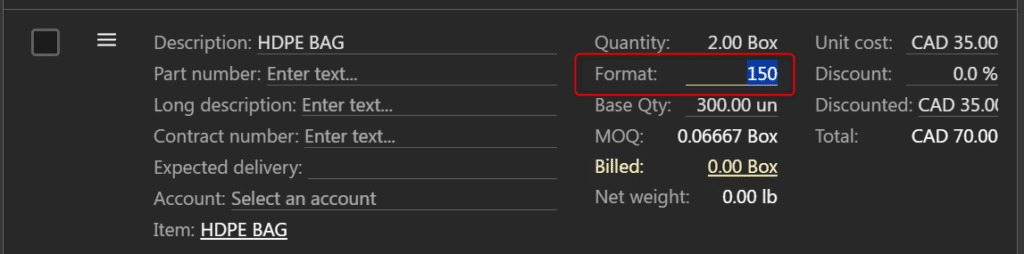
Custom unit display
When a custom unit is applied to a line, it appears:
- In the purchase order item grid (quantity and price in the custom unit).
- In the line item.
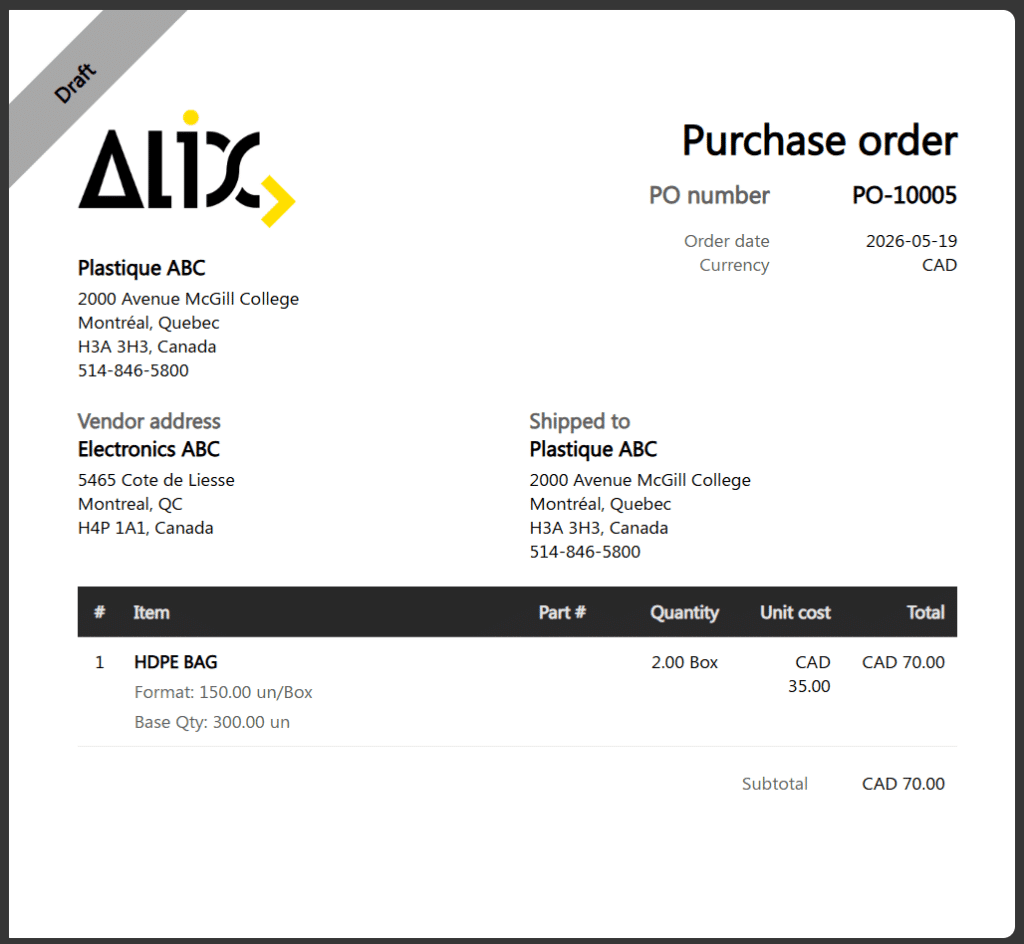
- On the purchase order PDF.
The custom unit also propagates to the goods receipt and to the bill created from the purchase order.