Add an invoice
Add an invoice
You can add an invoice for one or more items on the sales order. You can create a new invoice or add the items to an existing invoice.
- From the menu on the left, choose Sales->Sales orders.

- Click the sales order that you want. The information for this order will appear on the screen.
- In the ordered items section of the sales order, select the items that you want.

- Click More actions at the top of the list, and then click Add an invoice.
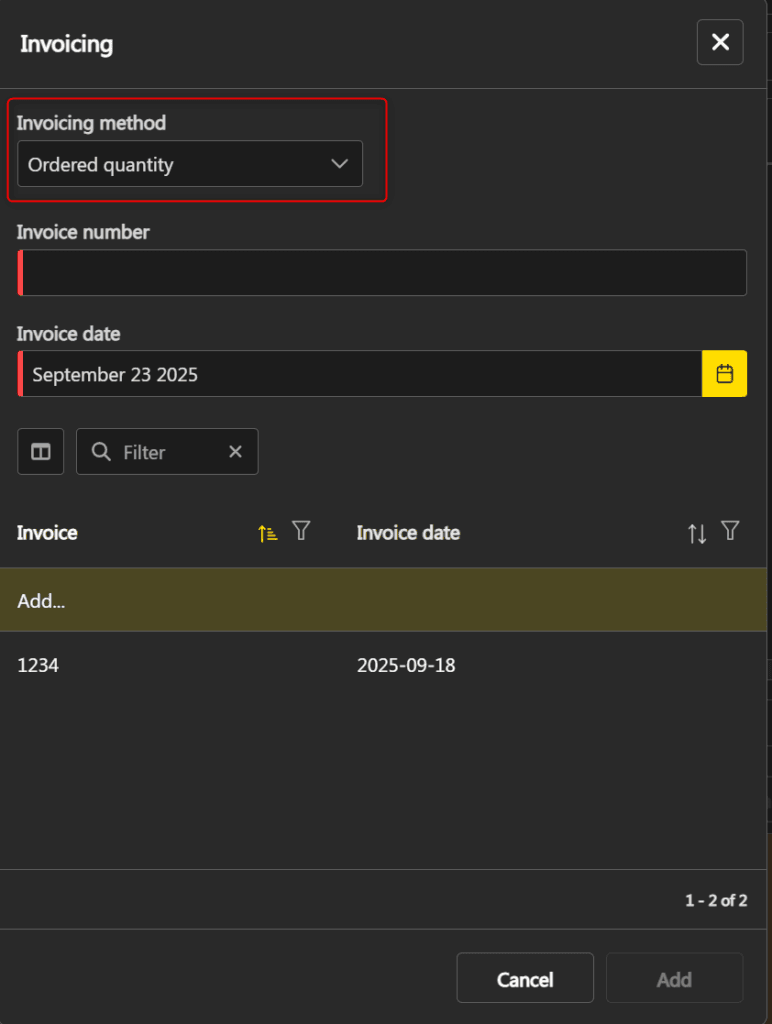
- Choose the invoicing method, of which here is some information:
Ordered quantity Invoices the ordered quantity of the selected line items. Shipped quantity Invoices the shipped quantity of the selected line items. Associated shipments Invoices all items in shipments that are associated with the selected line items. If the selected line items have not been shipped or the quantity shipped is invoiced, the only choice is Ordered quantity. Otherwise, it is possible to choose between Shipped quantity and Associated shipments. To choose the default shipment invoicing method, click here.
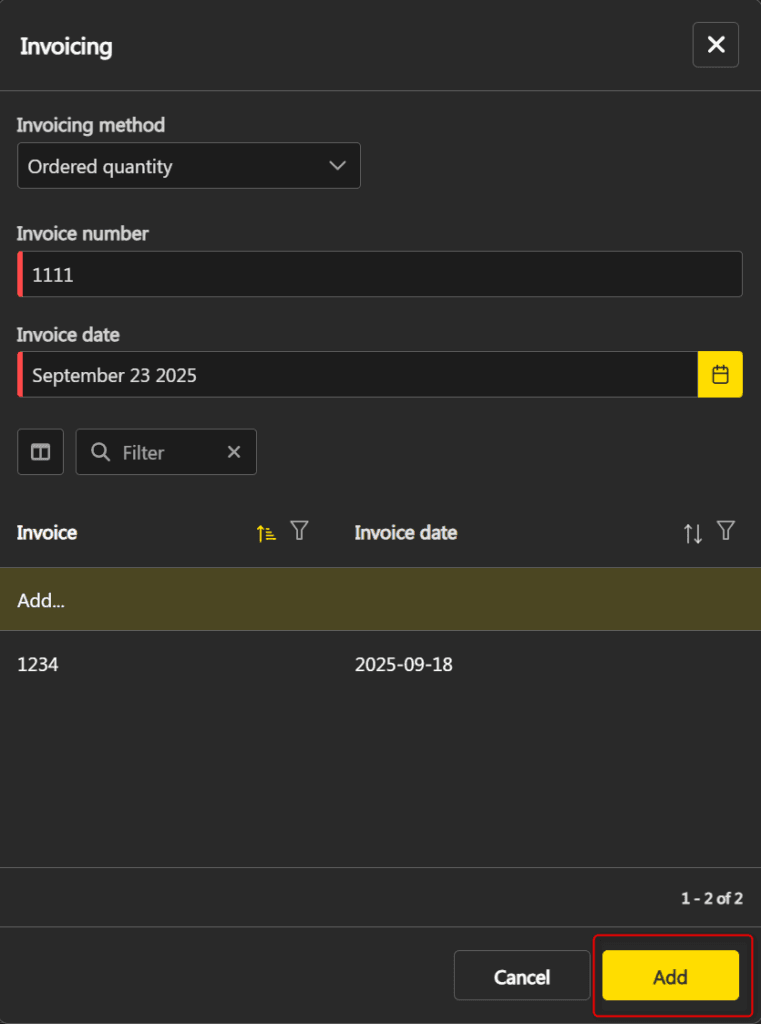
- Enter any other requested information, then click Add.
Perform partial invoicing
By default, the total quantity of the item ordered is invoiced when you add an invoice. You can perform partial billing by following these steps:
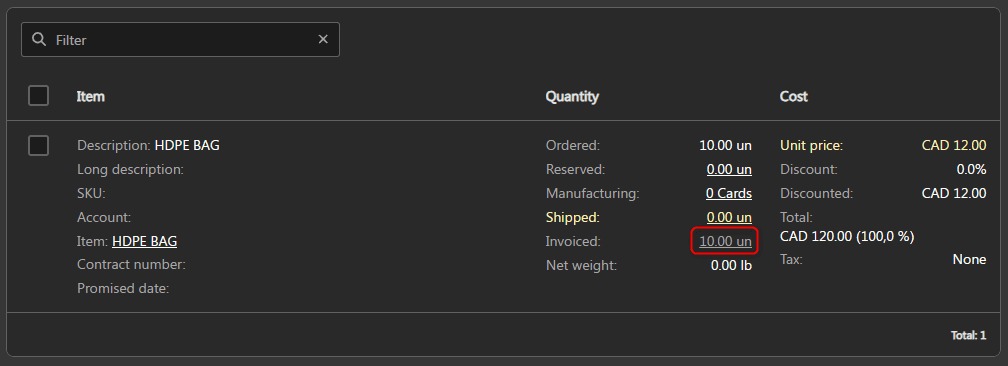
- Once the invoice is added, click the invoiced quantity.
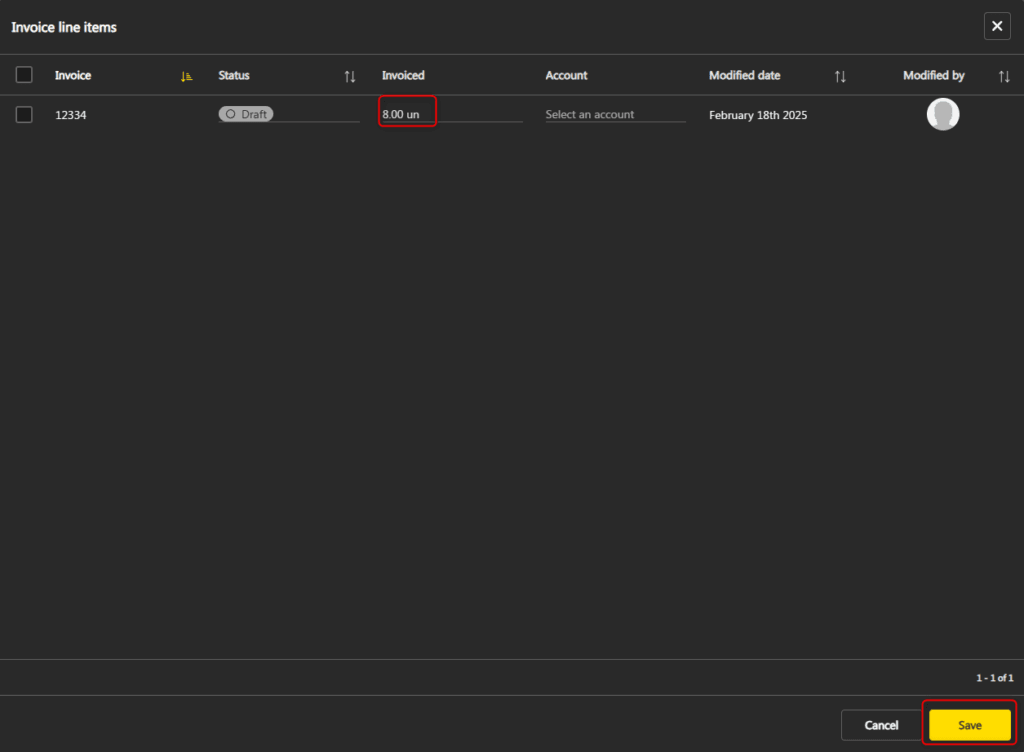
- A window will appear with billing information. Change the invoiced quantity.
- Click Save.