More actions on sales orders
Bulk edit on line items
You can change certain fields on all lines in a sales order at once with the Bulk edit button. The possible fields are: tax, promised date and markup.
- From the menu on the left, choose Sales->Sales orders.

- Click the sales order that you want. The information for this order will appear on the screen.
- Click Edit in the top right.

- Select the desired line items, and then click Bulk edit at the top of the list.

- Choose the field you want, enter the new value, and then click Save.

- To save the changes to the sales order, click Save in the top right.

Mark as shipped
It is possible to indicate that an order has been shipped without creating a shipment in ALIX. Once a line item is marked as shipped, it is no longer possible to assign it to a shipment.
- From the menu on the left, choose Sales -> Sales Orders.
- Click on the desired sales order. The information for this order will appear on the screen.
- Select the desired line items, click More Actions, and then Mark as shipped.

Mark as invoiced
It is possible to indicate that a purchase order has been invoiced without creating an invoice in ALIX. Once a line item is marked as invoiced, it is no longer possible to add it to an invoice.
- From the menu on the left, choose Sales -> Sales Orders.
- Click on the desired sales order. The information for this order will appear on the screen.
- Select the desired line items, click More Actions, and then Mark as invoiced.

Show customer note in a pop-up window when associating with a sales order
This option must be configured in the customer file :
- From the menu on the left, choose Sales -> Customers.
- Click on the desired customer. The information appears on the screen.
- Click Edit in the top right.

- Choose the option Show customer note in a pop-up.

Note: it is possible to define the default value of this option in the configurations.
- Click Save in the top right corner when you’re done.
Once the configuration is activated, the next time a sales order is created for that customer, the note will appear in a pop-up.
- From the menu on the left, choose Sales -> Sales Orders.
- Click Create sales order in the top right.

- Select the customer.

- A pop-up with the customer note appears.

Managing a sales order with a sales price based on the material weight
It is possible to create items whose selling price is calculated based on the material weight. To find out which configuration to apply, see: Item – Sales tab.
Here is some information:
- When adding items of this type to a sales order, the net weight can be adjusted to have the correct measurement (if the item’s unit of measure is already in weight, the Net weight field is not present and the measurement can be adjusted directly in the Ordered field).
- The unit price displays the selling price of the material with the unit of mesure.
- The total cost is calculated from the weight and the unit price.
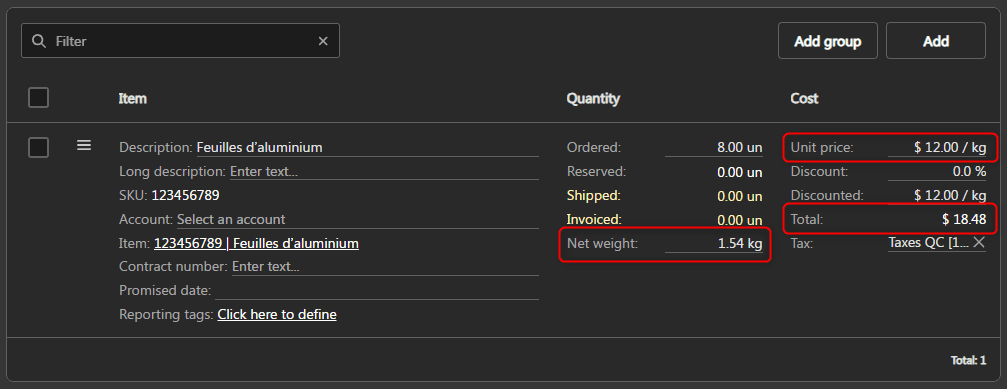
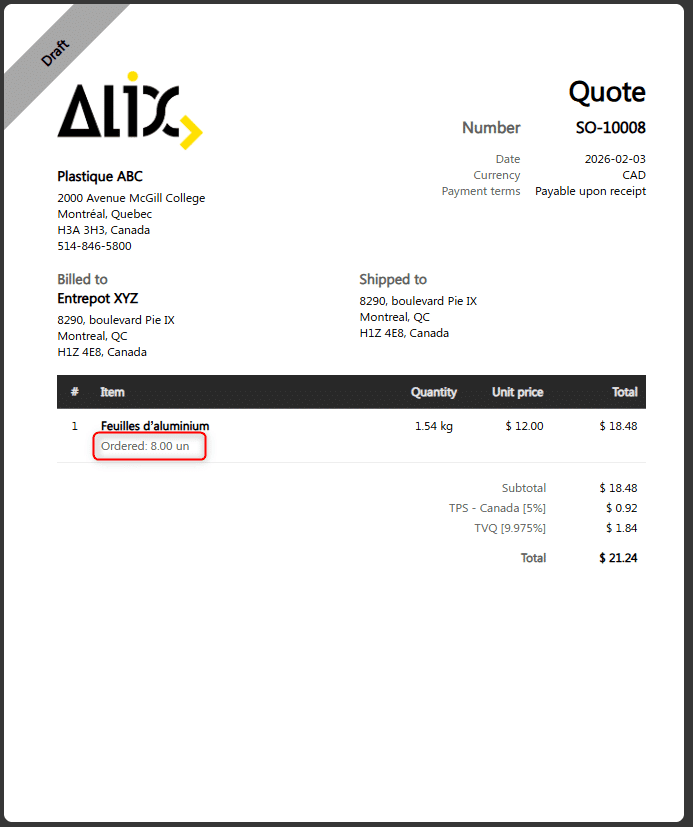
- If the unit of measure for the item is not a unit of weight, the quantity ordered will appear in the PDF view.
See available inventory when adding an item
When adding an item to a sales order, you can view the quantity available for sale without leaving the order. This is possible in both display modes of the item grid: the simple view and the detailed view.
Note: This action only allows you to view inventory. No reservation is made.
- In the left menu, go to Sales -> Sales orders.
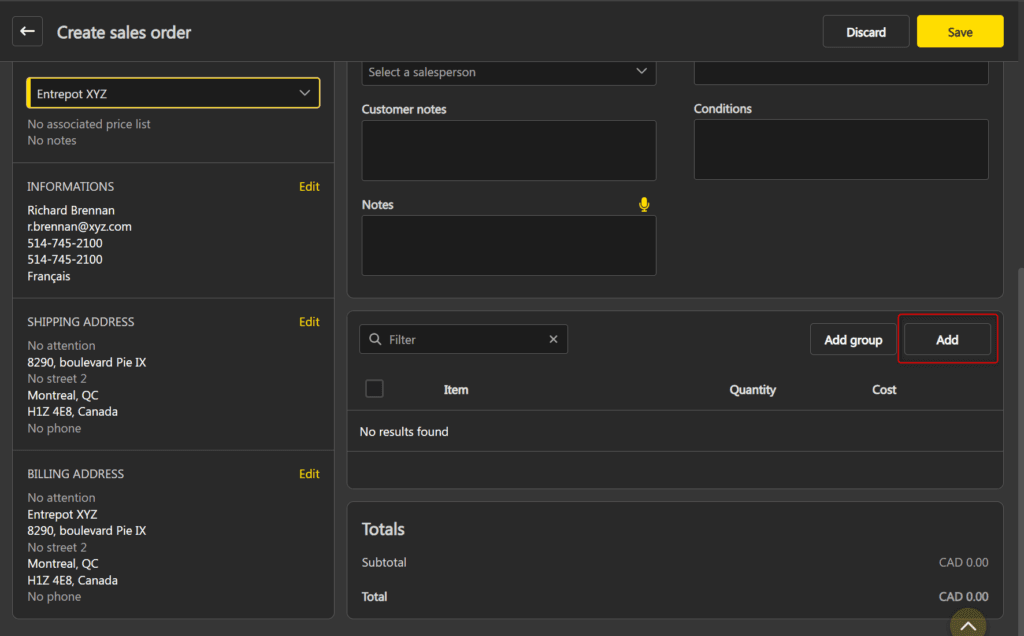
- Click Create sales order for a new order, or click the desired sales order, then click Edit to add an item.
- Click Add in the top right of the item list.
- Click on the displayed quantity to open the inventory view.
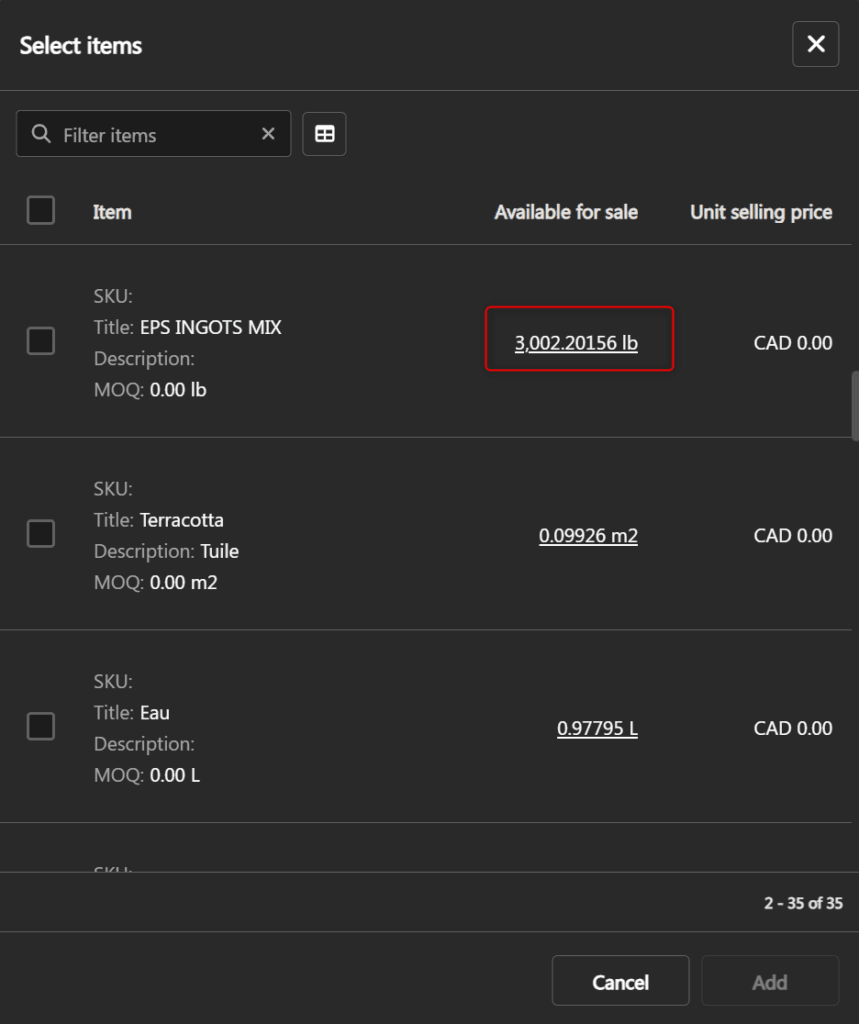
- A popup opens with the list of available inventories for this item.
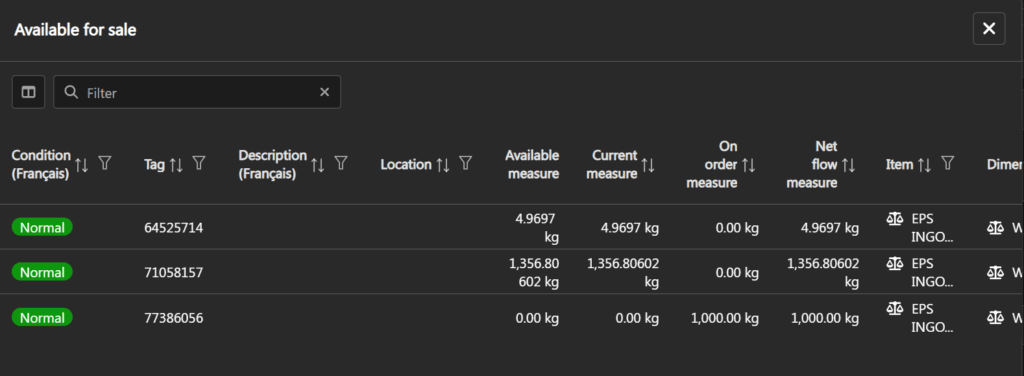
Note: This view is identical to the one used when reserving inventory for the same item.