Tools
-> Feature coming soon
A tool is an inventory item with lifecycle tracking: usage counters, maintenance and active/inactive status. Tools are created from Tool type items and remain linked to their inventory throughout their existence.
Tools are found in Equipments -> Tools. To configure a Tool type item, see the Tool tab page.
Create a tool
To create a tool:
- Navigate to Equipments -> Tools.
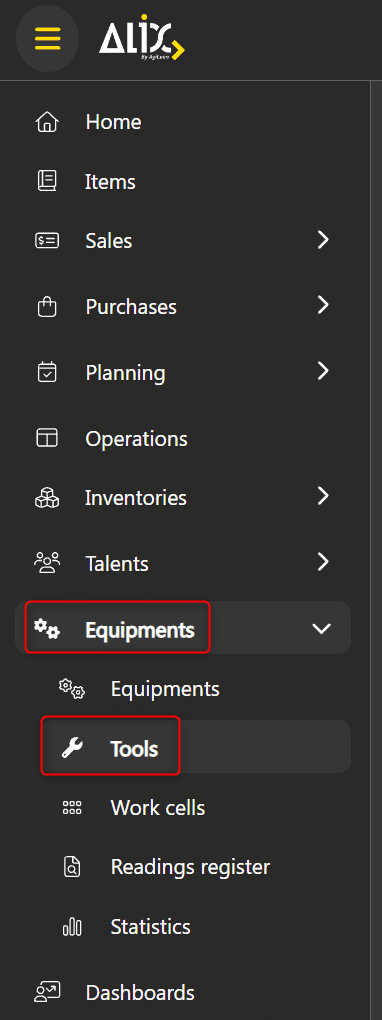
- Click Create.
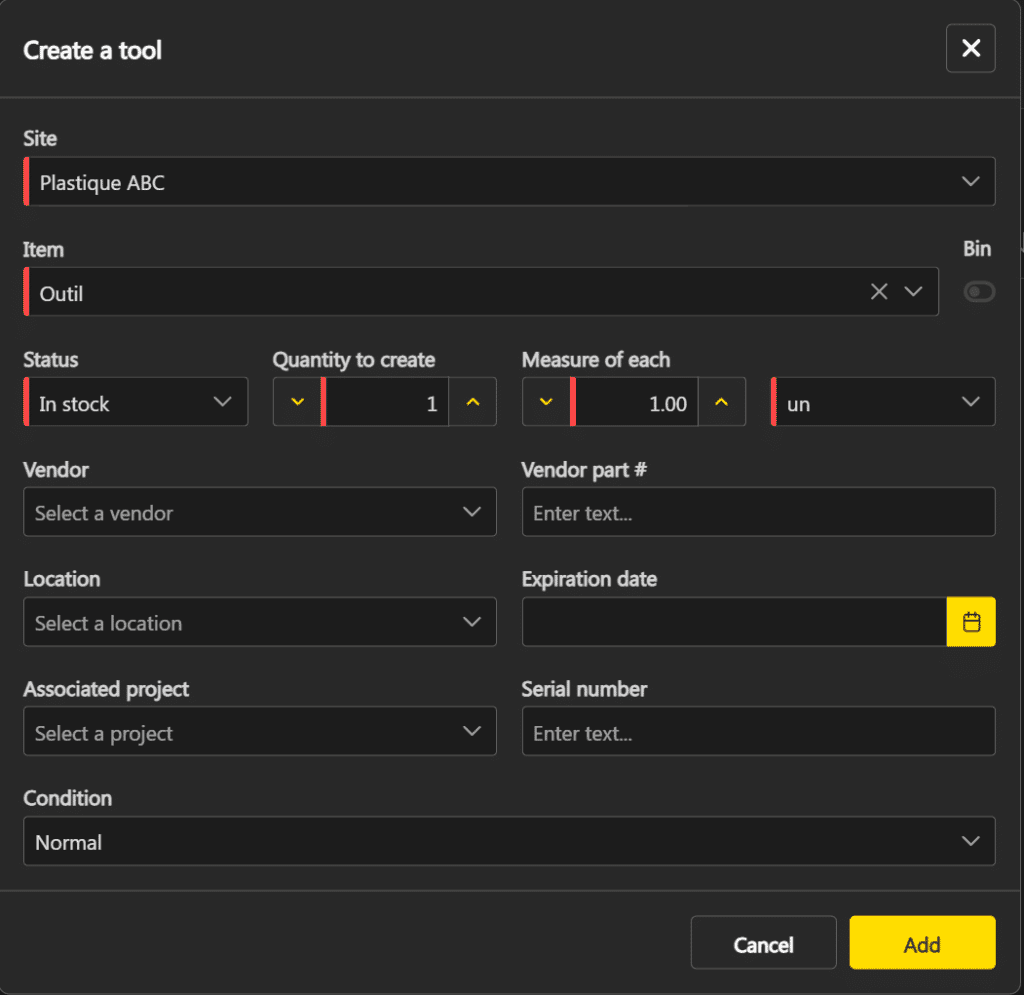
- Select the item. Only Tool type items are available.
- Fill in the required fields. The status is set to In inventory and cannot be changed.
- Click Add.
The tool title is automatically generated from the item’s number generator. If the Quantity to create is greater than 1, multiple tools are created with sequential titles.
The values configured in the item’s Tool tab (maximum number of uses, hourly rate, equipments and steps) are automatically applied to the created tools.
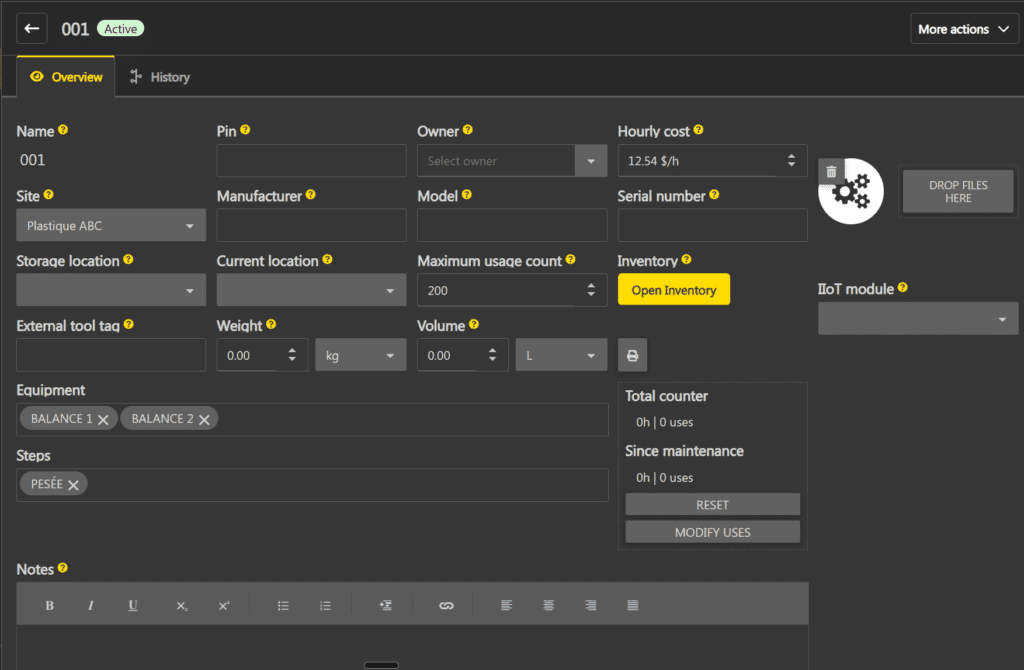
Tool form
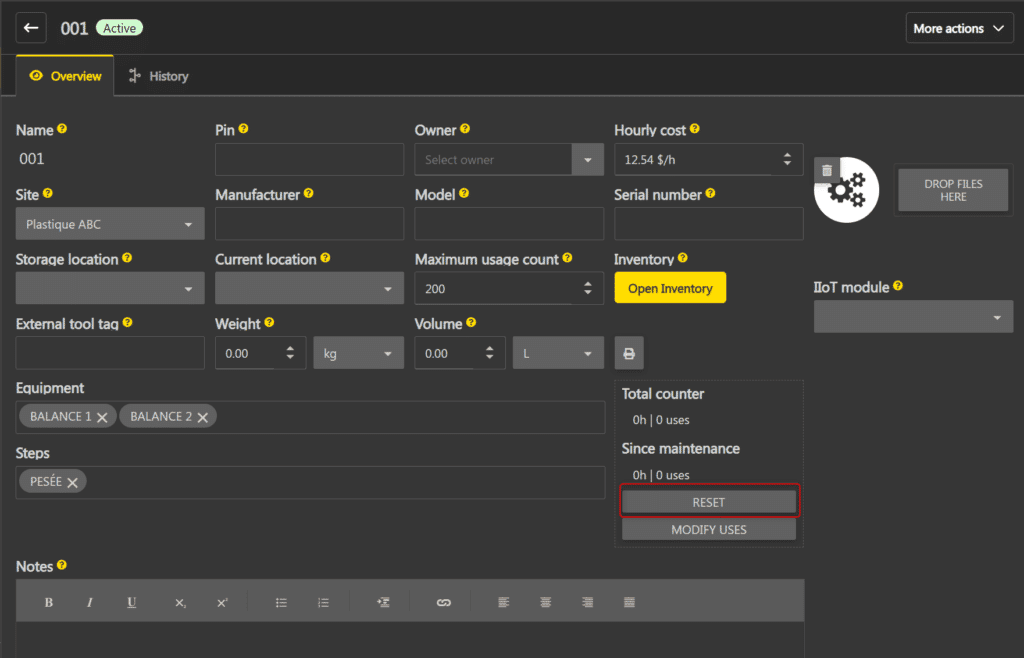
The tool form contains two tabs: Overview and History. The overview groups the tool fields, usage counters and maintenance calendar.
The following fields are specific to tools:
| Hourly cost | Rate used to calculate the tool cost in the production recipe. Inherited from the item at creation, editable afterwards. |
| Maximum usage count | Maintenance warning threshold. When the tool’s number of uses reaches this value, the Remaining usage count column in the grid displays zero. This threshold is informational and does not prevent the tool from being used. |
| Inventory | Link to the inventory associated with the tool. Click Open inventory to access the inventory record. |
| External tool tag | External identifier used for tool scanning on the operations board. |
| Equipments | Equipments associated with the tool. Inherited from the item at creation, editable afterwards. |
| Steps | Production steps associated with the tool. Inherited from the item at creation, editable afterwards. |
| IIoT Module | IIoT module associated with the tool, if applicable. |
| Notes |
Internal notes. |
The other fields (Name, PIN, Responsible, Site, Manufacturer, Model, Serial number, Storage location, Current location, Weight, Volume) are common to inventories. See the inventory documentation for more details.
Counters and maintenance
Each tool has two usage counters, visible in the form and in the grid:
- Total counter: displays the total number of hours worked and uses since the tool was created. This counter is never reset.
- Since maintenance: displays the number of hours worked and uses since the last maintenance. This counter is reset when a maintenance is performed.
The counters increment automatically during production, when a planned tool is used on a card. For the detailed incrementing rules, see the Planned tools page.
The tools grid also displays the Remaining usage count column, which shows the difference between the maximum number of uses (configured in the item) and the number of uses since the last maintenance.
Modify uses
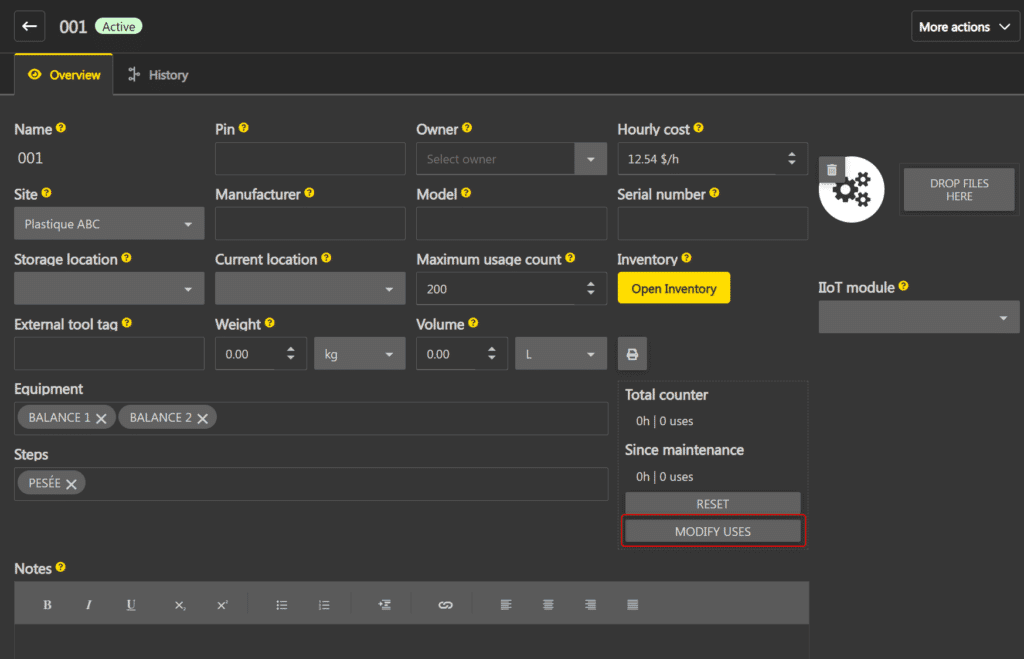
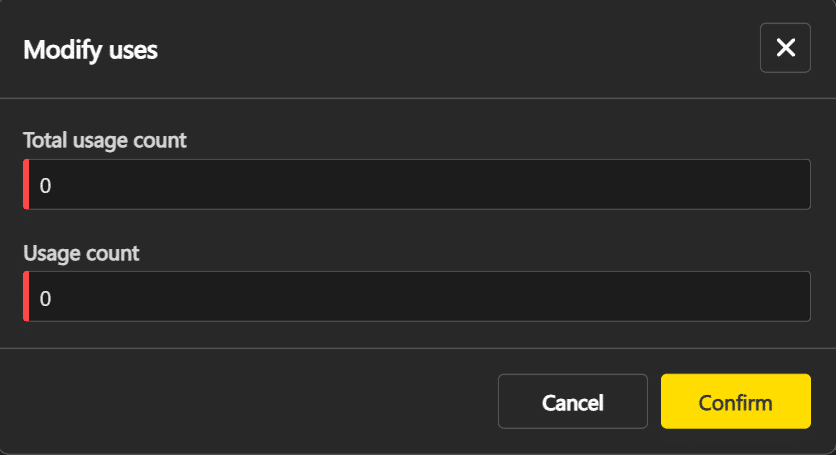
The Modify uses button allows you to manually adjust the counters. The popup displays two fields:
- Total usage count: the tool’s total counter.
- Usage count: the counter since the last maintenance. This value cannot exceed the total number of uses. Negative values are not accepted.
Reset
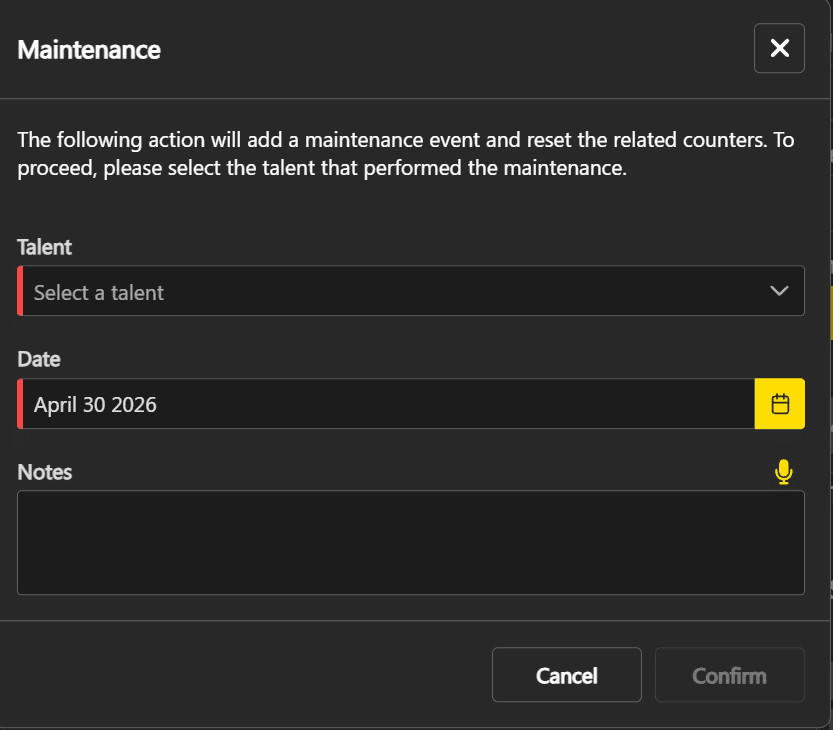
The Reset button performs a maintenance: it resets the Since maintenance counter (hours worked and uses since the last maintenance) to zero. The Total counter is not affected.
Activate or deactivate a tool
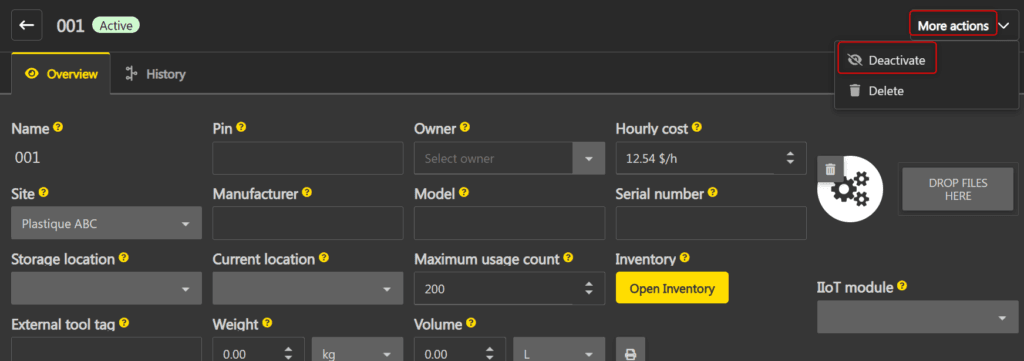
A tool can be deactivated via the More actions -> Deactivate menu in the tool form, or by selecting one or more tools in the grid and clicking Deactivate. To reactivate a tool, follow the same procedure with the Activate option.
An inactive tool:
- No longer appears in selection lists (planned tools, associations, etc.).
- Cannot be marked as used on a production card.
- If a tool is deactivated while in use on a card, the current use can be completed.
Inventory-tool link
Each tool is linked to an inventory. Certain fields are synchronized between the two: when a synchronized field is modified on the tool, the change is automatically applied to the inventory, and vice versa. The synchronized fields are: Name, Site, Manufacturer, Serial number and Location.
Actions performed on the inventory have the following impacts on the tool:
| Waste the inventory | The tool is deactivated (Inactive status). The inventory changes to Completed. |
| Complete the inventory | The tool is deactivated. |
| Split the inventory | A new tool is created for the split portion. A warning is displayed before confirmation. |
| Merge inventories | Merging is blocked for inventories linked to a tool. |
Note: deactivating a tool via the More actions menu does not deactivate the inventory. The link works in one direction only: from the inventory to the tool.
Delete a tool
To delete a tool, use the More actions -> Delete menu in the form, or select one or more tools in the grid and click Delete. Deleting archives the associated inventory and deactivates the tool.
Deletion is blocked if the tool is associated with used planned tools. A popup displays the conflicts and the tool cannot be deleted until the conflicts are resolved.