Manage production scrap
-> Available from ALIX 11.24.0. How do I find out the current version?
When a production generates defective parts, they can be declared as scrap directly in the Inventory production popup. A scrap can generate a separate inventory (with its own Inventory condition) or simply be deducted without creating an inventory.
Note: the default scrap values (create an inventory, inventory condition, automatic printing) are defined globally in the Inventory configurations and can be customized per item in the Inventory tab.
Mark a production as scrap
A production line can be marked as scrap from the Inventory production popup. This popup opens either by moving a card to the next step (multiple production), or by clicking the Unit production button in the Inventory production tab of a card’s full card.
- Open the Inventory production popup using one of the two methods above.
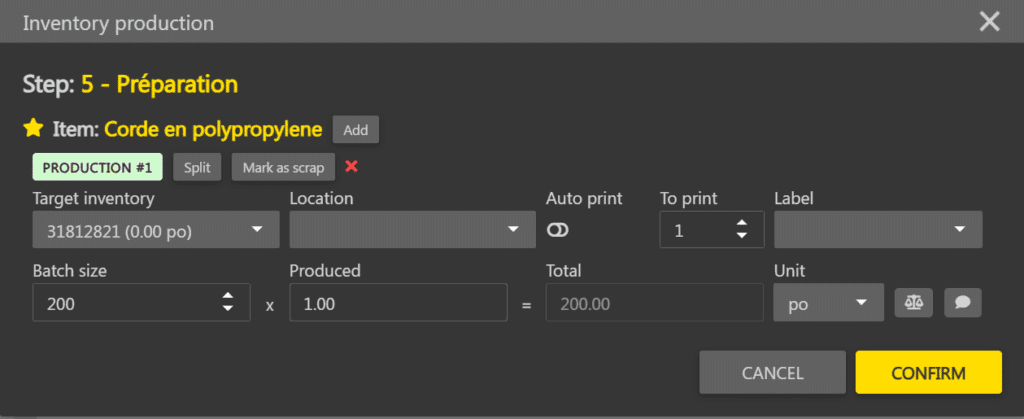
- On the line to scrap, click Mark as scrap. The Scrap configuration popup opens.
- Fill in the fields of the Scrap configuration popup, then click Confirm.
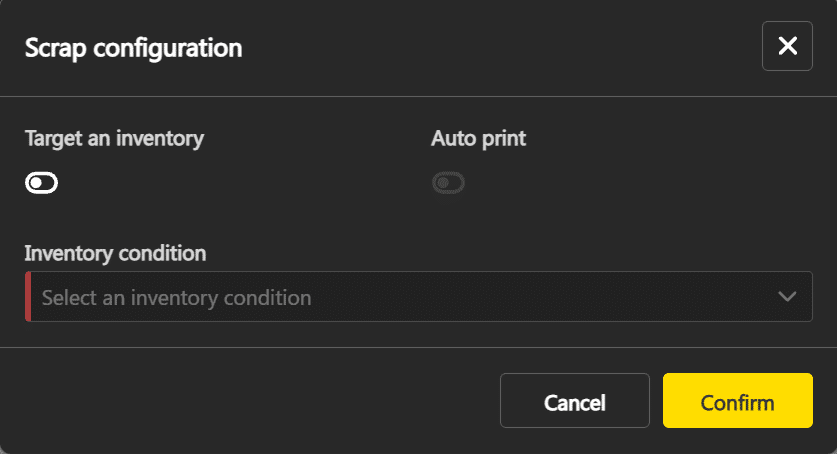
Target an inventory If enabled, the scrap creates (or updates) a separate scrap inventory. If disabled, the scrap is only deducted without creating an inventory. Auto print If enabled, a label is automatically printed upon confirmation for the scrap inventory. Available only if Target an inventory is enabled. Inventory condition Condition applied to the scrap inventory. Required if Target an inventory is enabled. The list contains active inventory conditions. - Back on the line, the badge changes to SCRAP – <Condition> #N in red and the Mark as scrap button becomes Mark as production.
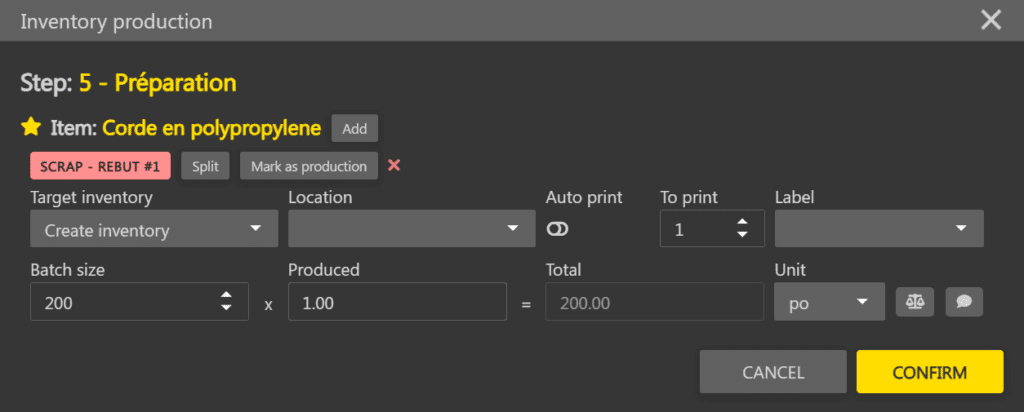
- If Target an inventory is enabled, the Target inventory selector offers Create an inventory (by default) or an existing inventory for the item whose condition matches the one chosen. If an existing inventory is selected, its measure is increased by the scrapped quantity.
- Enter the measure to scrap in the Produced field on the line.
- Click Confirm at the bottom right when you are done.
Note: in unit production, each scrap always creates a new inventory. The Target inventory selector is not available.
Note: a card can contain both production lines and scrap lines. Good parts and scrapped parts are counted independently, without modifying the planned measure on the card.
Note: as long as the production is not confirmed, click Mark as production on a scrap line to return it to production. The badge reverts to PRODUCTION #N in green and the scrap configuration is cleared.