Tax management in purchase orders
-> Available from ALIX 11.24.0. How do I find out the current version?
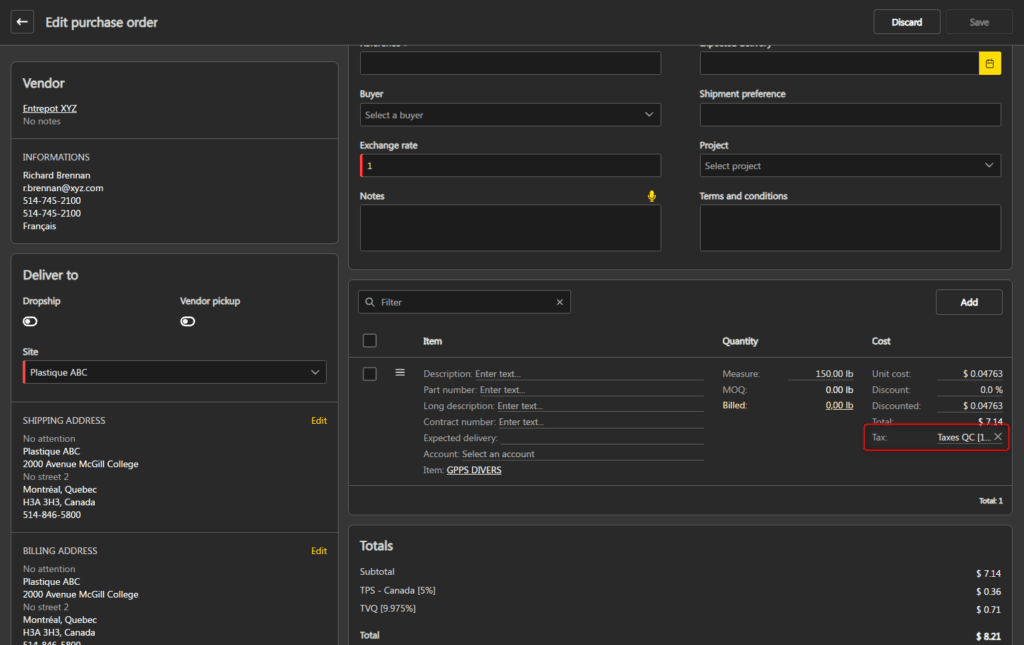
When adding items to a purchase order, ALIX automatically determines the applicable tax on each line. The tax can then be modified manually, and carries over to bills created from the purchase order.
Automatic tax on lines
When an item is added to a purchase order, ALIX automatically assigns a tax to the line based on the following priority:
- Vendor tax: if the vendor has a tax defined, it is applied and always takes priority over other rules.
- Tax by region: if the vendor does not have a tax defined, ALIX determines the tax based on the applicable address and the tax by region configuration.
Address used based on delivery mode
The address used to determine the tax by region depends on the delivery mode selected on the purchase order:
| Standard | The purchase order address (Shipping address section). |
| Drop shipping | The recipient customer’s address. |
| Vendor pickup | The vendor’s address. |
Tax by region cascade
Based on the applicable address, ALIX looks for a configured tax in this order:
- The specific region matching the country and province of the address (e.g. Canada — Quebec).
- The country region with all provinces (e.g. Canada — All provinces).
- The default region (All countries — All provinces).
The first tax found is applied. If no tax is configured at any level, the line has no tax.
Note: for the cascade to work, the Province and Country fields of the address must be filled in. If either of these fields is missing, the address is not taken into account. Learn more about address management and synonyms.
To configure taxes by region, see the Configure taxes by region section of the Tax management in sales orders page. The same configuration applies to both purchase orders and sales orders.
Modify the tax on lines
The automatically assigned tax can be modified manually on each line.
- From the menu on the left, choose Purchases -> Purchase orders.
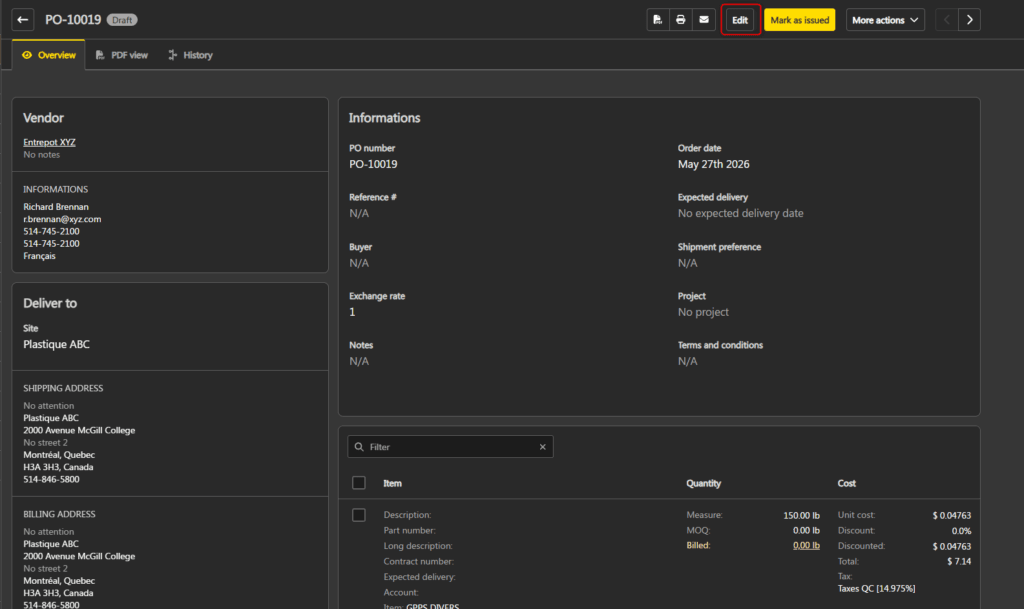
- Open the desired purchase order, then click Edit in the top right.
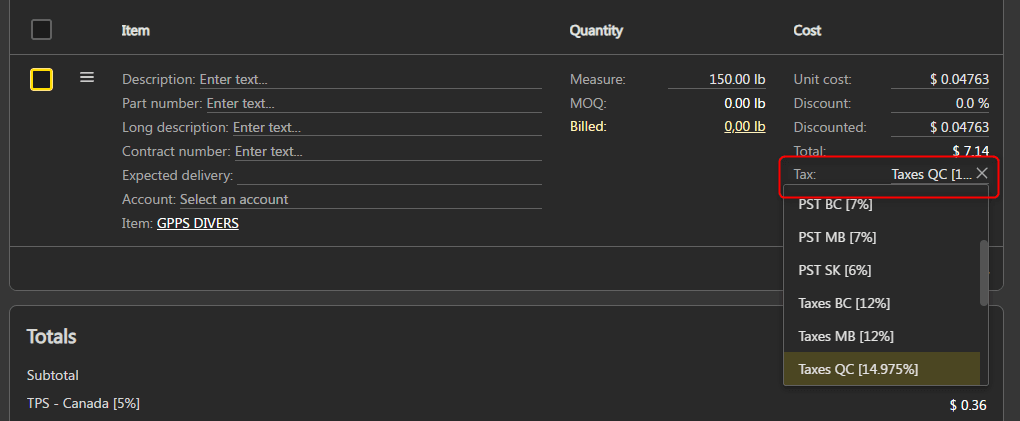
- On the desired line, click the Tax field and select the desired tax.
- Click Save in the top right when you are done.
Bulk edit the tax
- In edit mode, select the desired lines.
- Click Bulk edit in the action bar.
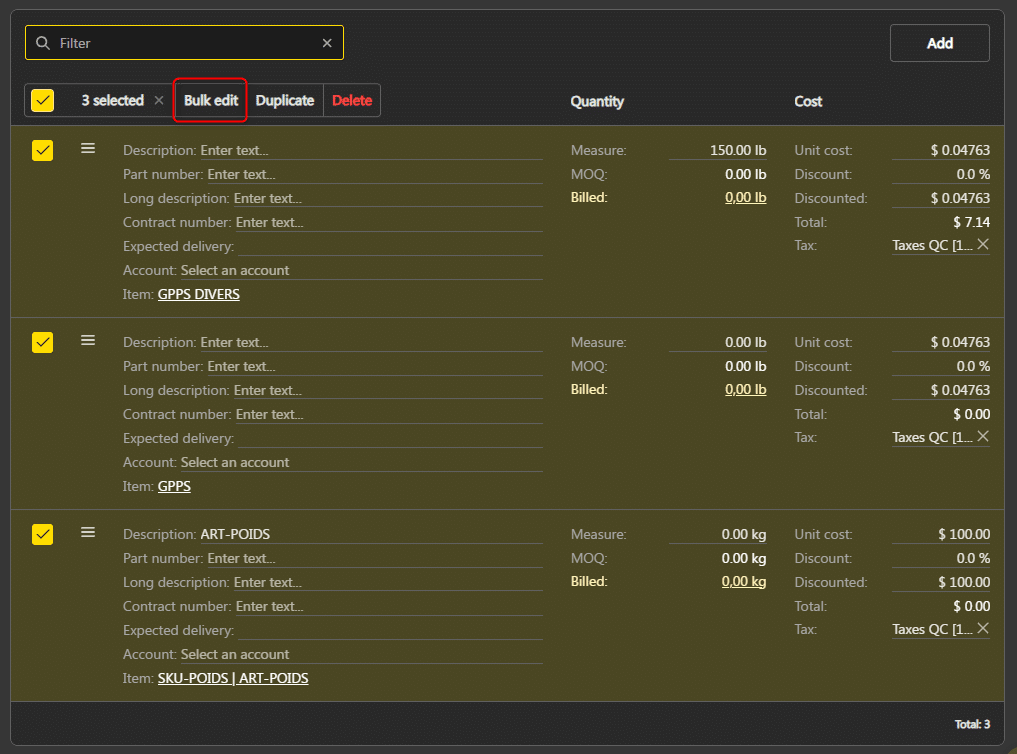
- Select the tax to apply, then confirm.
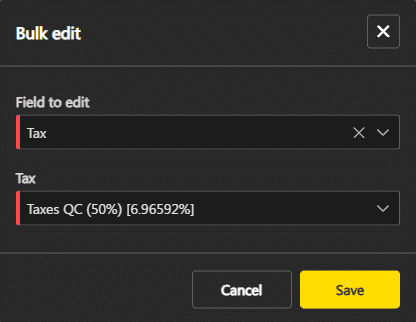
Note: the bulk edit applies the same tax to all selected lines.
Carry over to bills
When a bill is created from a purchase order, each purchase order line’s tax is carried over as the default on the corresponding bill line. The tax remains editable on the bill.
To create a bill from a purchase order, see the Add a bill to a purchase order page.
Note: if the Zoho Books integration is enabled and bills are synchronized, each line’s tax is transmitted to the corresponding bill in Zoho Books.