

The Files tab gathers the documents linked to an item: drawings, technical sheets, certificates or any other relevant document. You can upload files, view them, download them, delete them, and flag PDF documents to be printed with the shipment document.
Upload a file #
- In the left menu, click Items, click the item you want, then click the Files tab.

- Click Choose to select one or more files on your computer, or drag them into the zone. The added files appear pending, before upload.

- Repeat to add more files as needed.
- Click Upload to add the files to the item.
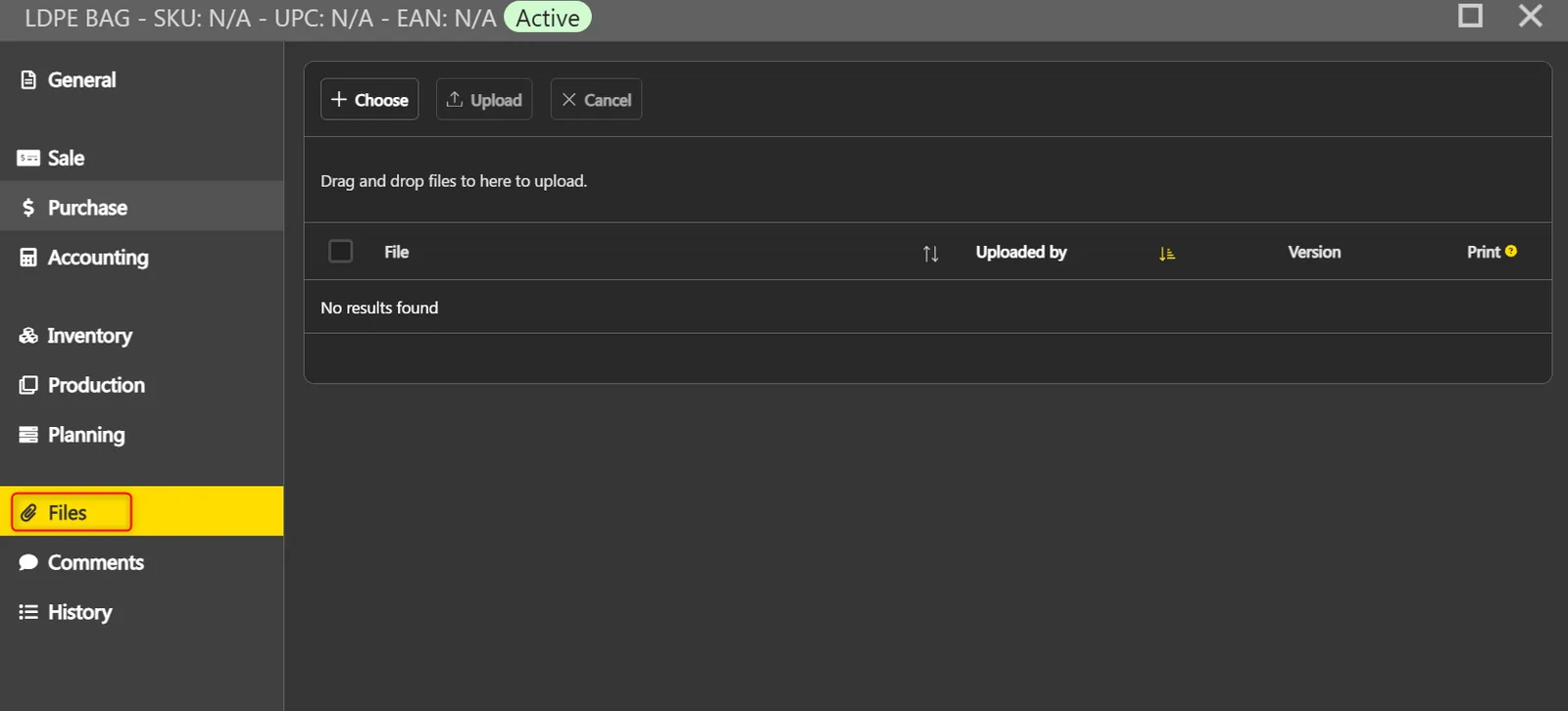
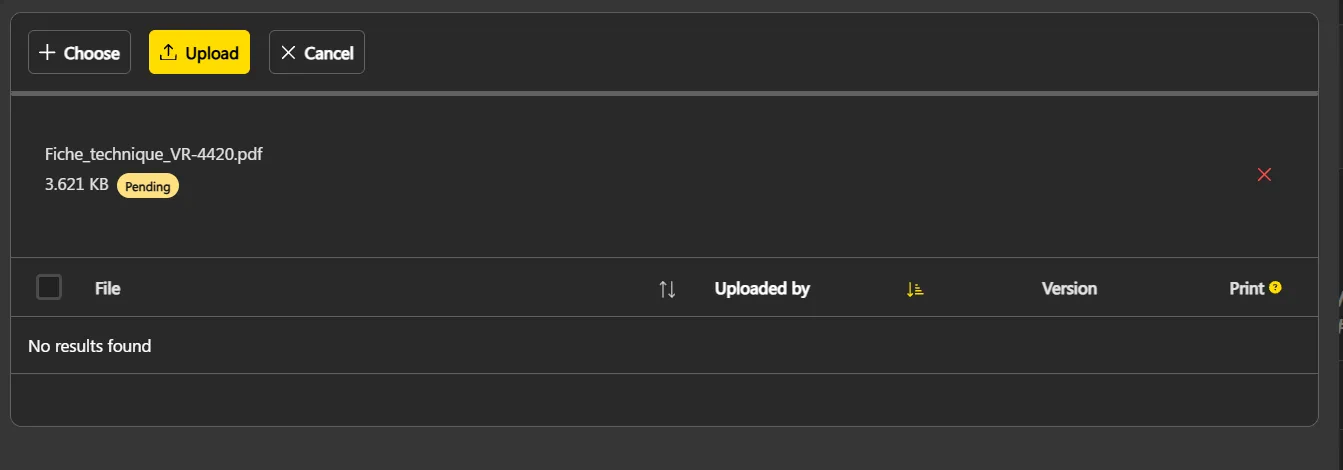
Note: until you click Upload, no file is added to the item. Click Cancel to clear the selection.
Note: the maximum size of a file is 50 MB.
View a file #
The list shows each file’s name (File), the person who added it (Uploaded by) and its Version.
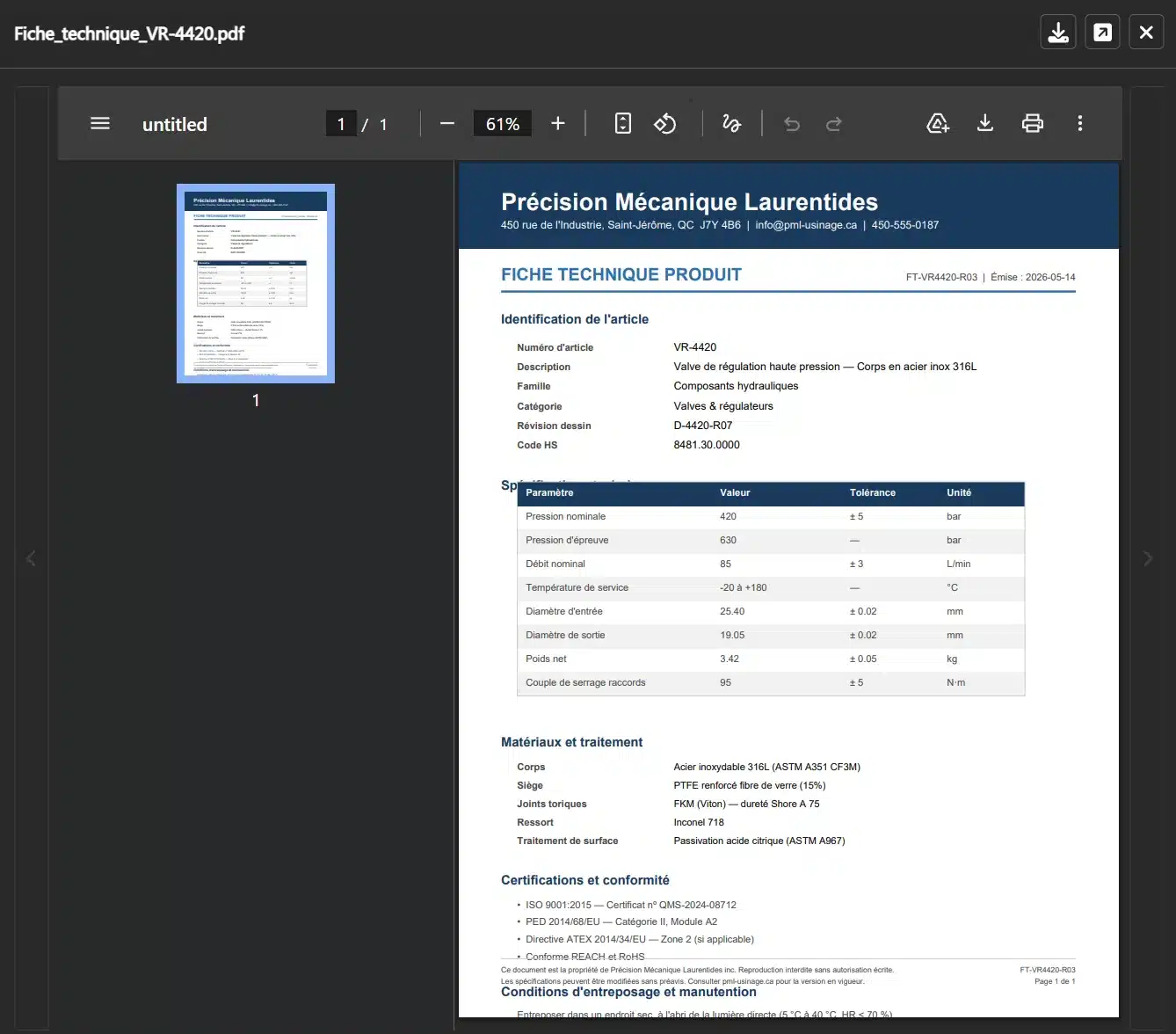
Click a file in the list to open it in the viewer and review it. You can also download or close it directly from the viewer.
Download a file #
- Select a file in the list.
- Click Download.

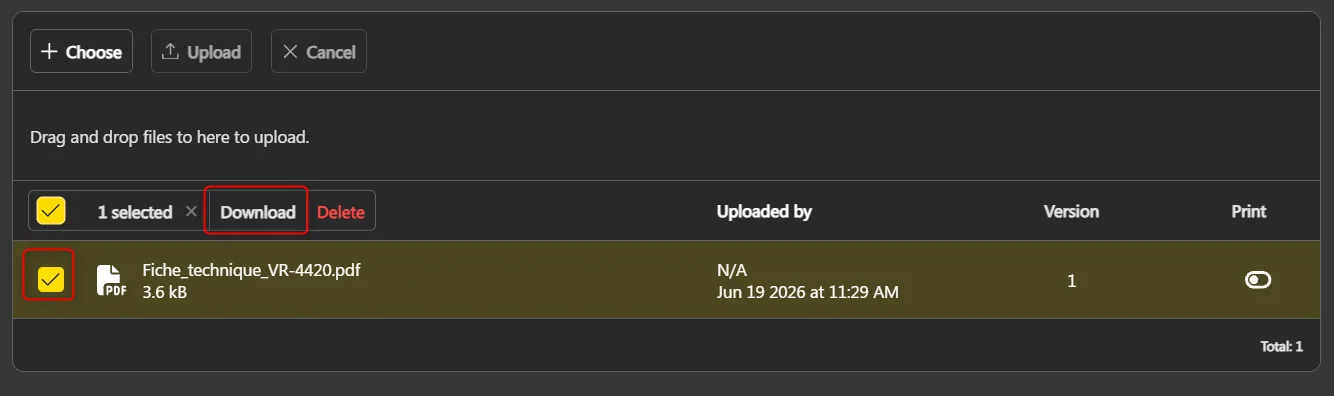
Note: you can only download one file at a time.
Print a document with the shipment #
The Print column lets you flag a document to be printed automatically with the item’s shipment document.
- In the list, turn on the toggle in the Print column on the row of the document you want.

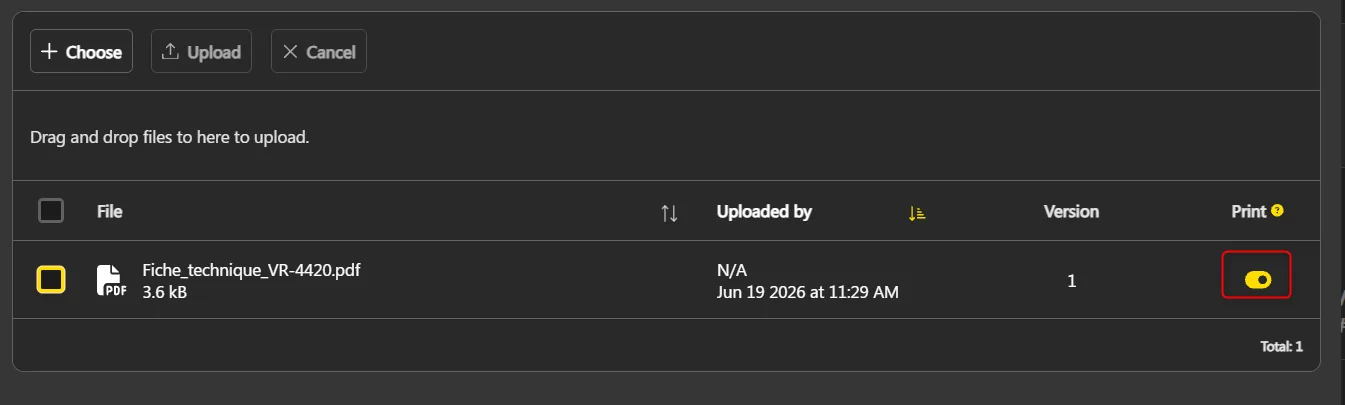
The setting is saved immediately.
Printing cannot be enabled for a file that is not a PDF.
The flagged documents are printed with the item’s shipment document.
Delete a file #
- Select one or more files to delete.
- Click Delete.
- Confirm the deletion.