

ALIX’s integration with Zoho CRM enables bidirectional synchronization of customers between both systems. Customers created or modified in Zoho CRM are automatically synchronized to ALIX, and vice versa. This page covers the initial connection, module configuration and field mapping.
Note: Only Zoho CRM accounts (Accounts) are synchronized. CRM contacts without an associated account are not imported into ALIX.
Scope of integration #
The integration with Zoho CRM synchronizes the following elements in both directions (CRM ↔ ALIX):
- Customers (Accounts in CRM)
- Contact persons (Contacts in CRM)
- Billing and shipping addresses
Connect Zoho CRM #
- In Settings, go to the Integration
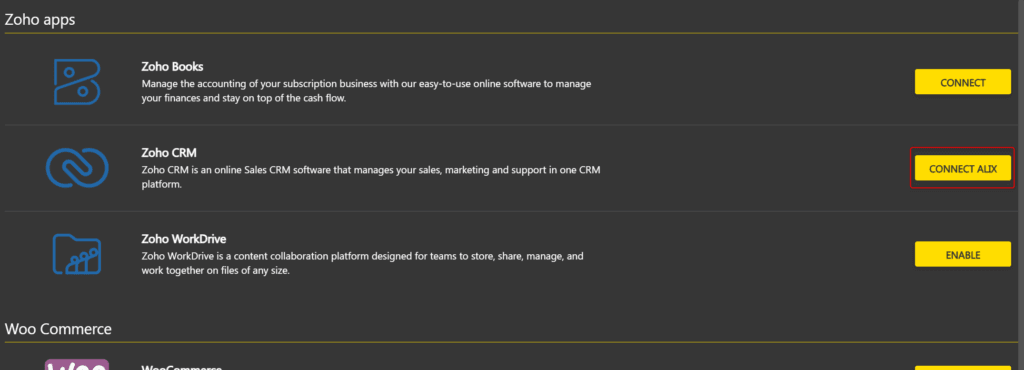
- Click Connect next to Zoho CRM.

- Authorize the connection by following Zoho’s instructions.
- Click Connect ALIX.

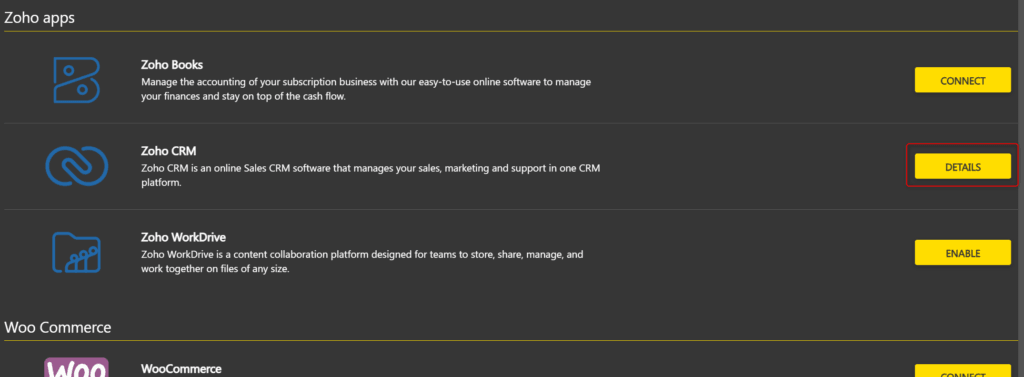
- The integration page reloads. The button now shows Details next to Zoho CRM.


Activate the Customers module #
- In Settings, go to the Integration section, then click Details next to Zoho CRM.
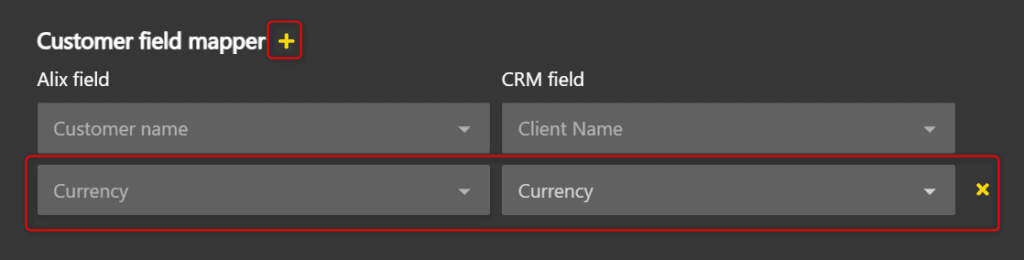
- In Customer field mapper, add the Currency field by mapping it to Currency in the CRM Field.
Note:If the currency is not mapped, an error message is displayed.

- Activate Customers by clicking the toggle in the Synchronization.


Map fields #
Field mapping determines which information is synchronized between ALIX and Zoho CRM. Two mapping sections are available:
- Customer field mapper — customer fields (name, currency, website, etc.)
- Customer contact person field mapper — fields of the person associated with the customer (email, name, etc.)
Four mandatory fields cannot be deleted:
- Customer name → Client Name — preconfigured, not modifiable
- Currency → Currency — must be added manually (see previous step), modifiable afterwards
- Email → Email — preconfigured, not modifiable
- Last name → Last Name — preconfigured, not modifiable
- In the desired mapping section, click the + to add a field mapping.
- Select the ALIX field in the ALIX Field column and the corresponding CRM field in the CRM Field.

- Repeat for each field to synchronize.
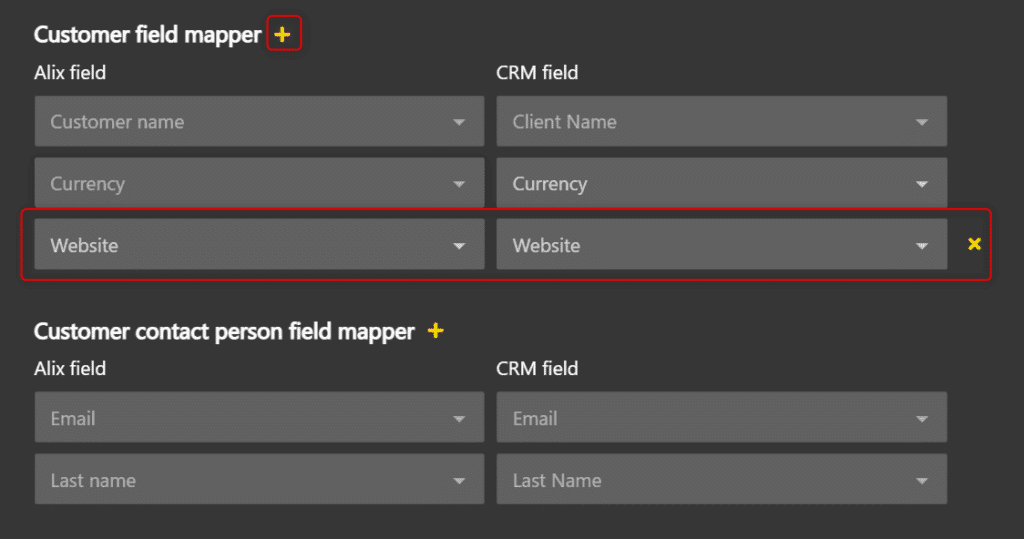
Note: You must complete a field mapping before adding another one. If you click the + while a mapper is incomplete, an error message is displayed.
To delete a field mapping, click the X to the right of the mapping. Mandatory fields cannot be deleted.
Configure address modules #
The integration offers four address modules, each covering a different address type. Each module must be configured and activated separately.
Main billing address #
This module synchronizes the customer’s default billing address, stored in the standard fields of the CRM account (Billing Street, Billing City, etc.).
- In the Zoho CRM integration details, locate the Main billing address.
- In Main billing address field mapper, click the + and map the required fields: street, city, country, province and postal code.

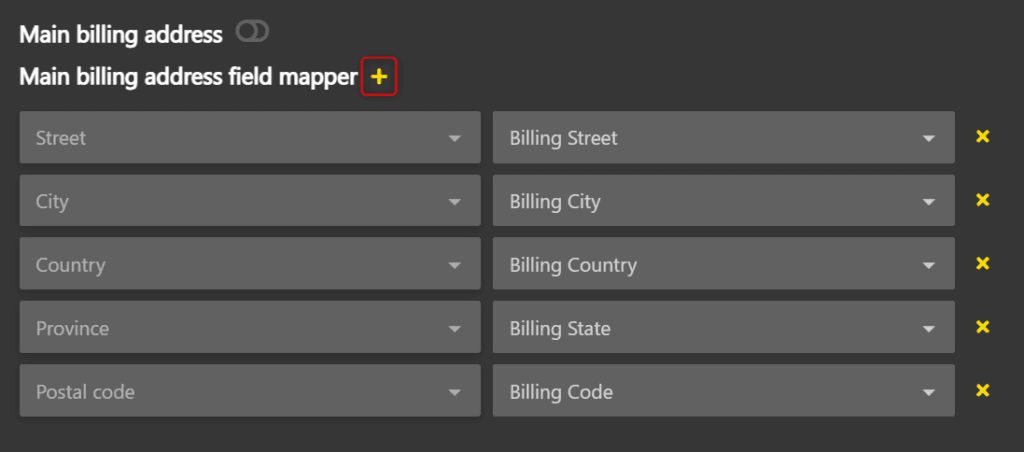
Note: The Is main address field is not available in this module. The address synchronized by this module is always considered the main address in ALIX.
- Activate the module by clicking the toggle.

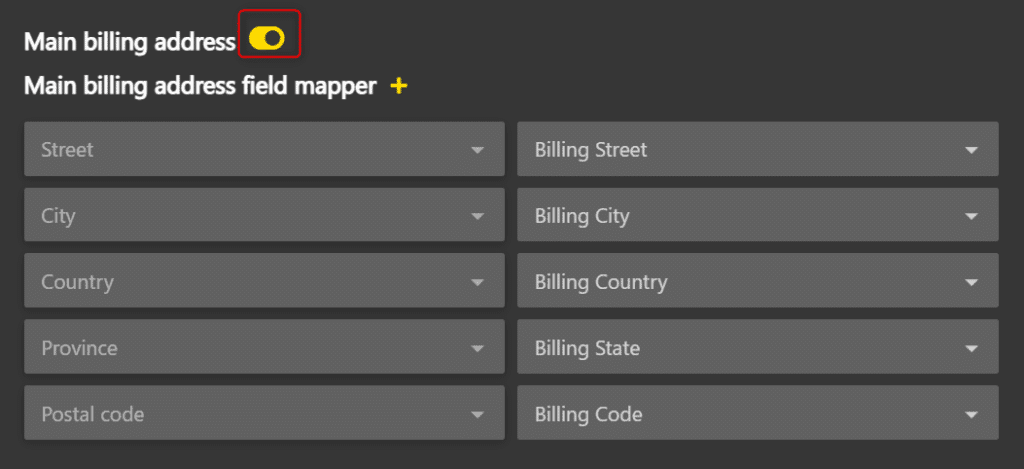
Note: Once the module is activated, the required field mappings can no longer be deleted. To modify them, you must first deactivate the module.
Main shipping address #
This module synchronizes the customer’s default shipping address, stored in the standard fields of the CRM account (Shipping Street, Shipping City, etc.).
The configuration follows the same process as the main billing address:
- In the Zoho CRM integration details, locate the Main shipping address
- In Main shipping address field mapper, click the + and map the required fields: street, city, country, province and postal code.

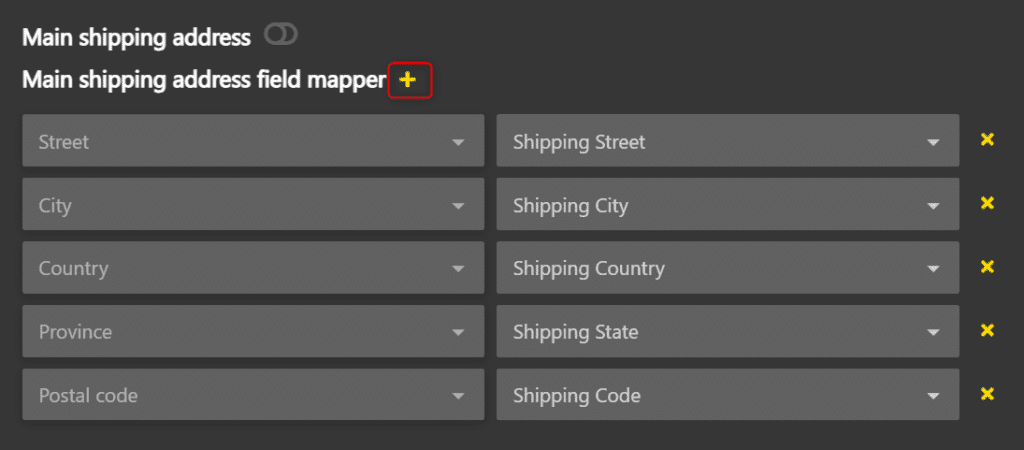
Note: The Is main address field is not available in this module. The address synchronized by this module is always considered the main address in ALIX.
- Activate the module by clicking the toggle.

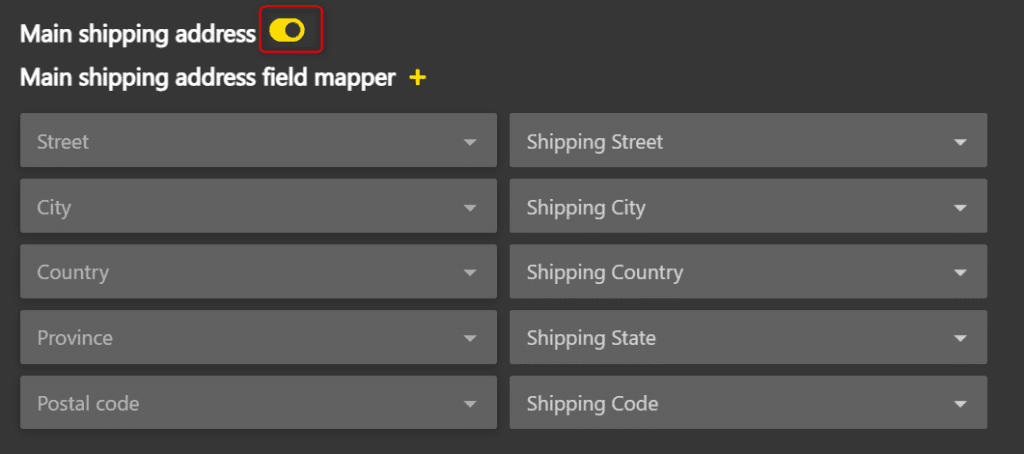
Note: Once the module is activated, the required field mappers can no longer be deleted. To modify them, you must first deactivate the module.
Billing addresses #
This module synchronizes billing addresses stored in a custom Zoho CRM module. This allows managing multiple billing addresses per customer, in addition to the main address.
- In the Zoho CRM integration details, locate the Billing addresses
- In the dropdown next to the toggle, select the CRM module that contains the billing addresses (for example, Billing addresses).

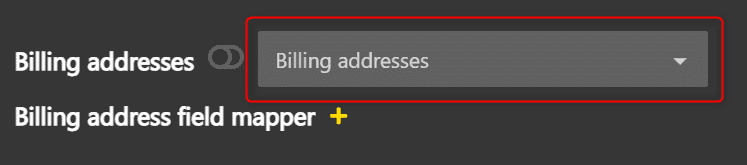
Note: To change the selected CRM module, you must first deactivate the module with the toggle, then delete the field mapping. As long as the module is activated, required fields cannot be deleted. Only manually added fields can be deleted at any time.
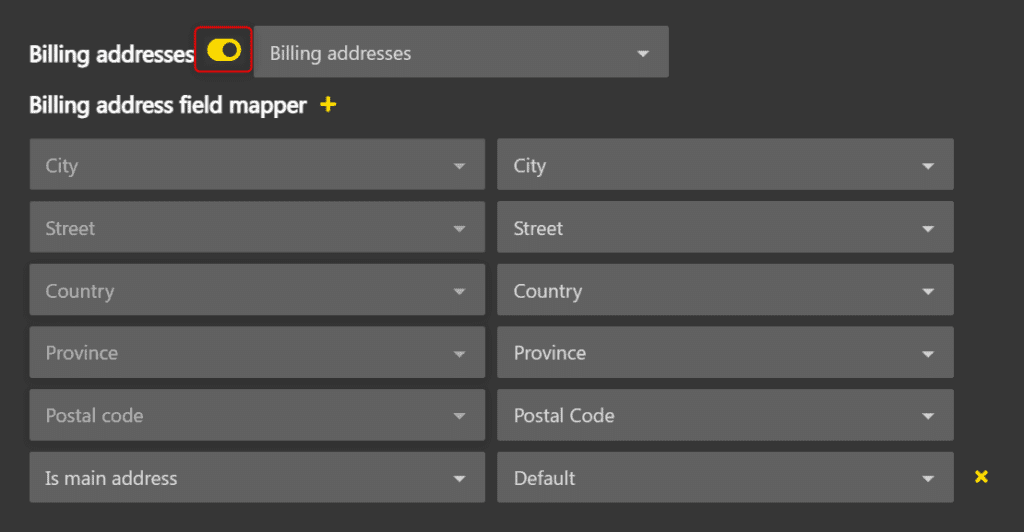
- In Billing address field mapper, click the + and map the required fields: street, city, country, province and postal code.
- Map the Is main address field to Default in the CRM module.

- Activate the module by clicking the toggle.


Shipping addresses #
This module synchronizes shipping addresses stored in a custom Zoho CRM module.
The configuration follows the same process as billing addresses:
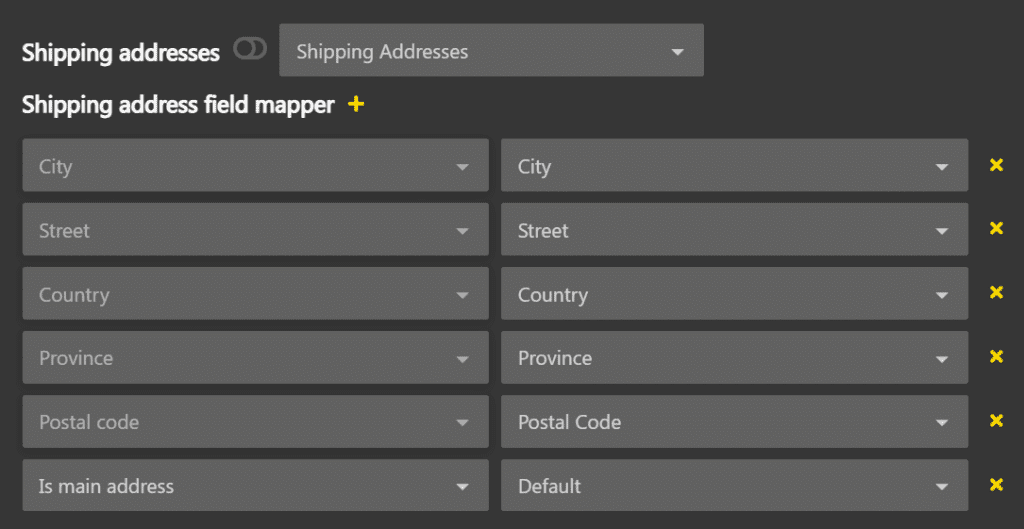
- In the Zoho CRM integration details, locate the Shipping addresses
- In the dropdown, select the CRM module that contains the shipping addresses (for example, Shipping Addresses).


Note: To change the selected CRM module, you must first deactivate the module with the toggle, then delete the field mappings. As long as the module is activated, required fields cannot be deleted. Only manually added fields can be deleted at any time.
- In Shipping address field mapper, click the + and map the required fields: street, city, country, province and postal code.
- Map the Is main address field to Default in the CRM module.

- Activate the module by clicking the toggle.


Initial synchronization #
Once the configuration is complete, launch an initial synchronization to import existing customers from Zoho CRM to ALIX.
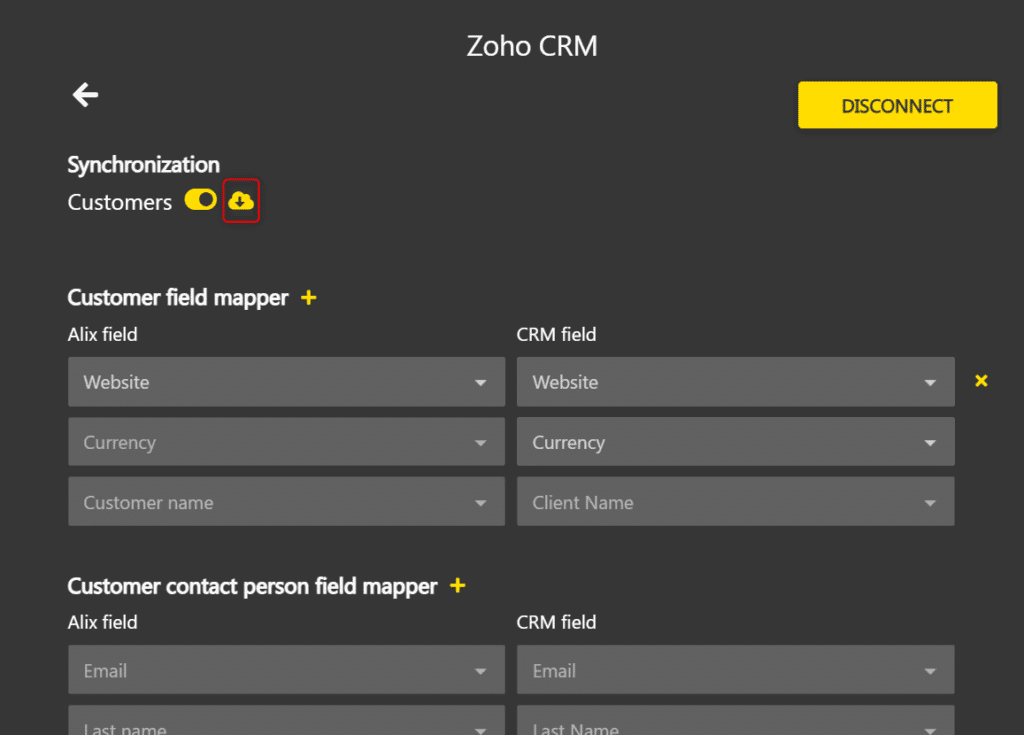
- In the Zoho CRM integration details, click the synchronization icon (cloud) next to the Customers.

- The progress is displayed in a toast at the bottom of the screen. Wait for the synchronization to complete.

- Once the synchronization is complete, verify the imported customers in Sales -> Customers.

Note: If customers with the same name already exist in ALIX, they are automatically linked to the corresponding CRM account without creating duplicates.
Note: Subsequent synchronizations are faster. Only customers that have been modified since the last synchronization are processed. Others are skipped.